
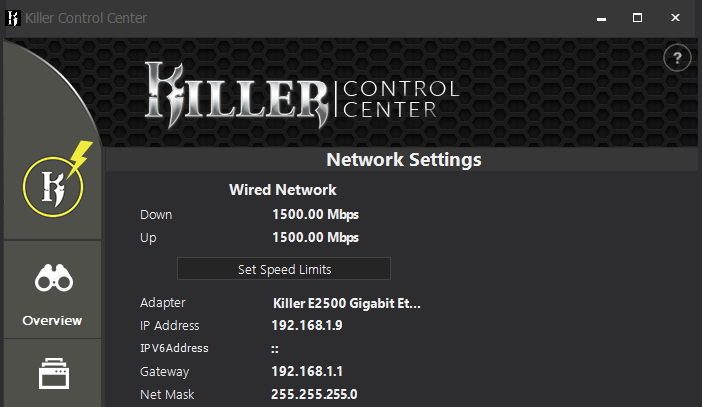
So sometime in this past week, my PC decided it can no longer do 1Gbps ethernet connectivity, even though it has been doing it no problem for a number of years.
Current Setup
Motherboard: EVGA X299 FTW-K
CPU: Intel i9 7820X
Ethernet Adapters (On board): 1xKiller E2500, 1xIntel I219-V
Router: Nighthawk XR1000v2
Steps taken so far in the troubleshooting process:
- Tested cable using cable tester, no damage found (Known good cable)
- Updated & restarted router.
- Uninstalled drivers from both adapters & restarted PC to allow windows to reinstall them automatically.
- Ran latest TCPOptimizer to reset settings to windows default & restarted PC.
I installed the Killer Control Center suite from EVGA's download page for my motherboard, and it is showing as having 1500/1500 Up / Down, but in windows' device manager, it is showing as only having 100/100.
What am I missing here???
35 Comments
You said it’s not the cable, but it’s still likely the cable. Just try a different one to rule it out.
I had similar issue:
1. Pc randomly switching from 1000mbps to 100mbps. Replugging ethernet cable made it go back to 1000mbps. The issue was with cable, that was 5e cable, that technically should support 1000mbps, getting a proper cat6 fixed it.
2. Download speeds, in steam, never seemed to go beyond 12mb/s, when epic could comfortably sit 80mb/s. The issue was with router throttling. Got a new router and all s good
If you have a Linux usb stick you can boot off that into a live system and see if it sets the network at 1000 or 100. Rules out windows driver issues then. No need to install it. Even if you never use or want Linux, it’s handy to have on a pen drive for emergencies.
Check the pins inside your PC’s NIC and on the router. Look closely to see all 8 are present and not bent.
You said you updated and restarted router but if this is cable internet did you power cycle your modem?
Also did you try both ethernet ports on you motherboard? Since they both support 1000
Some people have issues with the killer network drivers, maybe try without?
Can you confirm the actual current link speed? Powershell > get-netadapter will show the Linkspeed. The device manager currently shows it as Auto-negotiated; it doesn’t list 1Gbit as an option, but I’m wondering what it actually is. (I suspect that it’s limited to 100/100 since that’s the highest listed, but I’m still wondering what Auto-negotiated ends up as).
Also, I’d check the currently installed driver version and see if the vendor has a newer (or more specific) version. Windows autoinstall *usually* works fine, but it certainly won’t be the first time it picks a working-but-not-optimal driver.
Please log into your router panel, I had a similar issue and somehow my ethernet port was set to 100 mb/s instead of 1000mb/s. You can change this in your router panel normally. Its never bad to check if the port is actually on 1000mb/s (or higher) :).
Your cable could still be the issue. I had the exact same issue and the cable tested fine at a shop. I had to repeatedly reseat my ethernet cable to temporarily fix the issue but once i got a new cable, I never had an issue.
Uninstall drivers, block drivers from windows update and install lastest again
If your internet is over 100 Mbps? If so, do a speed test. Is your download faster than 100? That would solve it.
Otherwise, try a short cable (less than 3 feet) connecting your pc directly to your router (not through a wall, etc). Your house may have a new item producing electromagnetic interference, weakening the capacity of the cable. Fans, fridges, air purifiers, dehumidifiers, and plenty other devices produce tons of interference.
Likely not related, but I had a similar frustrating issue with my local NAS.
Turned out the SMB protocol on the NAS was outdated and I had to turn off an encryption setting in Windows or something like that in order to negotiate the higher speed from the older protocol.
Once I made that change in Windows via command line, it brought my connection speeds back to to 100+ MB/s
But I had the exact same frustrating experience trying everything to fix the issue.
Keep at it… You’ll get it!
I had the exact same issue and despite everyone saying it was the cable I tested multiple cables and it turned out that the motherboard port was dirty/damaged. I ended up buying a 1gig nic and used that instead with no issues.
Check tcp window setting? TCPoptimizer is a lazy shell. Check with built in windows tools.
It’s the cable. Try a new cable.
I worked with stuff like this and it is 99% likely that it is a connectivity issue.
People already pointed out that it could be the cable. I would like to point out that it can also be the wall connector or the connection at your motherboard or any connection between you and the “Internet”
It’s always good to test your theories by ruling out things you already know to be true (like the cable). Do it methodically. Always change one variable and look how the result changes.
Do it easiest to hardest by order
Step 1 is definitely the cable
Step 2 connect to a different wall connector
Step 3 use a different PC (borrow one of needed)
And so on.
Is your PC connected directly to the router or through a wall Ethernet jack? I had a similar issue before, and it turned out the jack itself was the problem.
It’s a common problem with intel NIC. Had the same on my old mobo. Manually setting the speed to 1000Mbit would work for a while before it switched back to 100Mbit. Replacing cables didn’t help.
I had the same thing once years back. A tech from the ISP came in and all, tried on my computer with his cable that worked on his laptop but not on my PC. Then I went to Windows settings and did a reset, and everything went back to normal. If on Win11, go to network and internet -> advanced network settings -> network reset.
When a 4 pair full duplex ethernet cable is only running on 2 of the pairs (half duplex), the speeds will go down to 100Mbs
Mine did this, was the cable. So I assume it can be the port. And the router port.
It’s your cable dude. Trust me
Cable testers do not test stability/speeds – only simple pass/fail connectivity. You have to get a much more expensive tester to test link speed. As others have said, the simplest answer is probably replacing the cable.
Mine did this randomly awhile back. It was the cable. If part of the cable is damaged or has a bad connection it will drop down to 100mbps
It’s the cable..
Getting lots of “it’s the cable” but I’ve had two killer nics and they all eventually die or start having random issues. Do a favor and go buy a pci intel adapter or a USB adapter.
It is the cable mate listen to people my PC sometimes also limits itself to 1Gbps even though I have 2.5Gbps. I always have to use another cable to resock it then reuse my original cable to get back to 2.5Gbps, god knows why it did that but sure it did.
Ethernet cable. Inspect the length.
It is almost certainly the cable. The link rate is negotiated based on line quality in part. Physical breaks will see the link rate plummet until it can tx+Rx without error
Networking adapter drivers ok? Adapter reports ok?
netsh wlan show interface
Edit: if you aren’t using both adapters disable one. until you’ve sorted this. also in advanced adapter options there are settings to FORCE specific link rates. Make sure you aren’t.
For me it was the jack that enters in the router, it corroded the copper contacts, I had to clean the contacts with some sharp tool and later on I changed the cable.
Look into NIC advanced settings “Speed Down Mode” and select “Not speed down” or something similar. Had this exact problem and that fixed it. If not, try to switch cable to another port in router.
Don’t buy new cables (it’s the default advice as well for monitor “problems”, don’t waste your money).
The “it is the cable” people are frustrating. The ethernet on my motherboard is stuck at 100Mbps. I get 1Gbps with the same cables on EVERY device besides my onboard ethernet. I use a usb c ethernet and get a solid connection with the same exact cables. It isn’t always the cable.
It’s absolutely the cable. I just had the cable between my modem & router decide 100mbps was the correct answer despite being tested good for 10gbps when I installed it. After 15 minutes of troubleshooting it randomly decided it would do 1gbps again and has been fine since.
An average cable tester will usually only test continuity, but the cables can still be working while going bad and downgrading your connection to 100MB.
Just chiming in to say every “Killer” branded nic I’ve had has delivered sufficiently in being the killer of a stable internet connection.
Do yourself a favour and dump that shit.