Your gonna wanna install a third party app for seeing that. windows sucks at showing you what is eating your space
RatzzFatzz
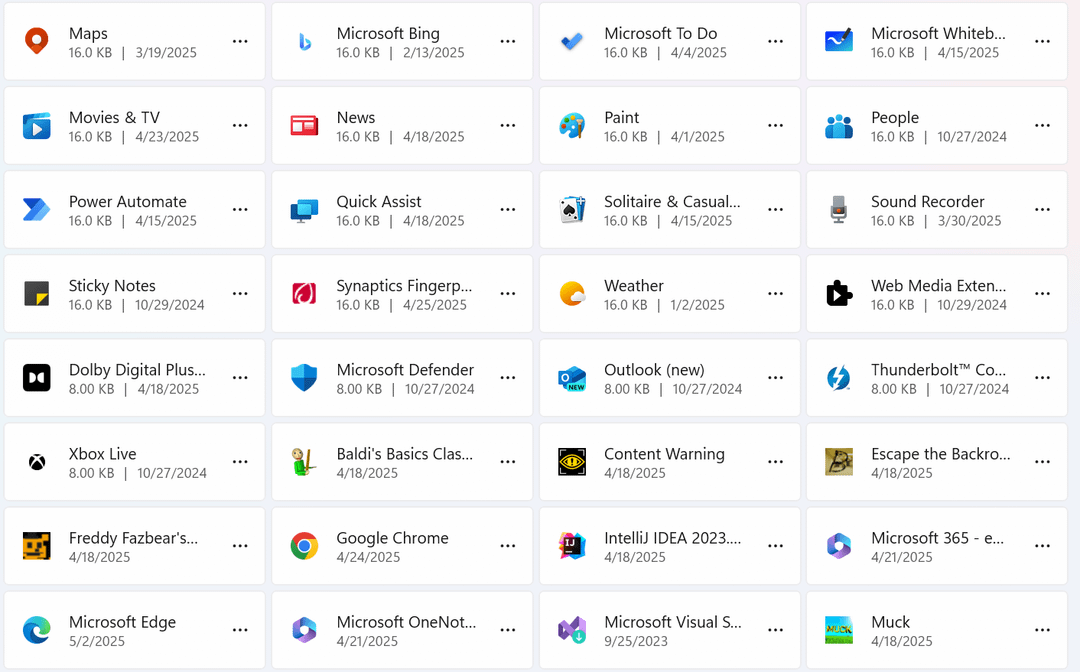
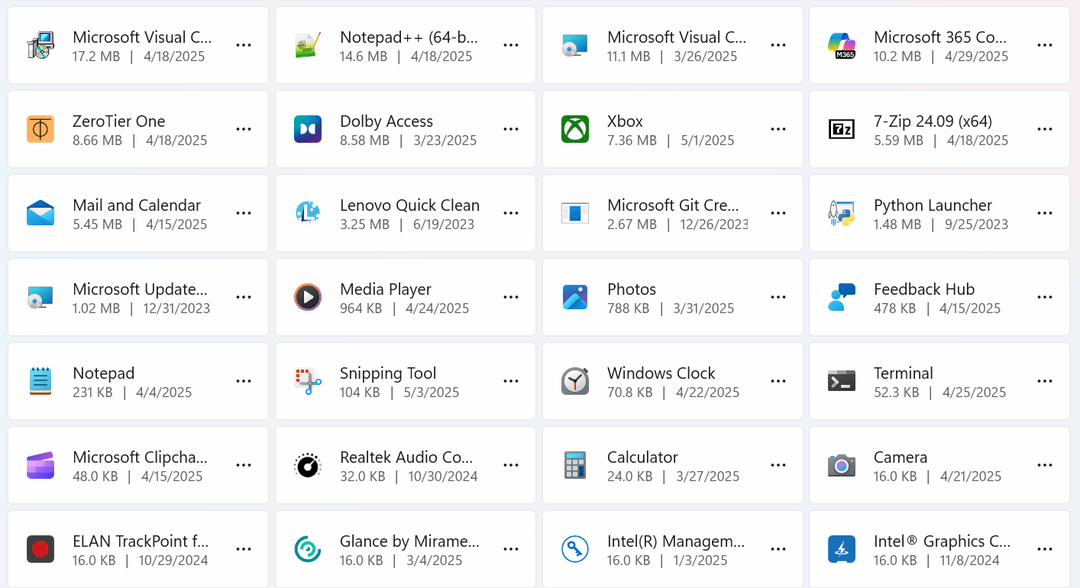
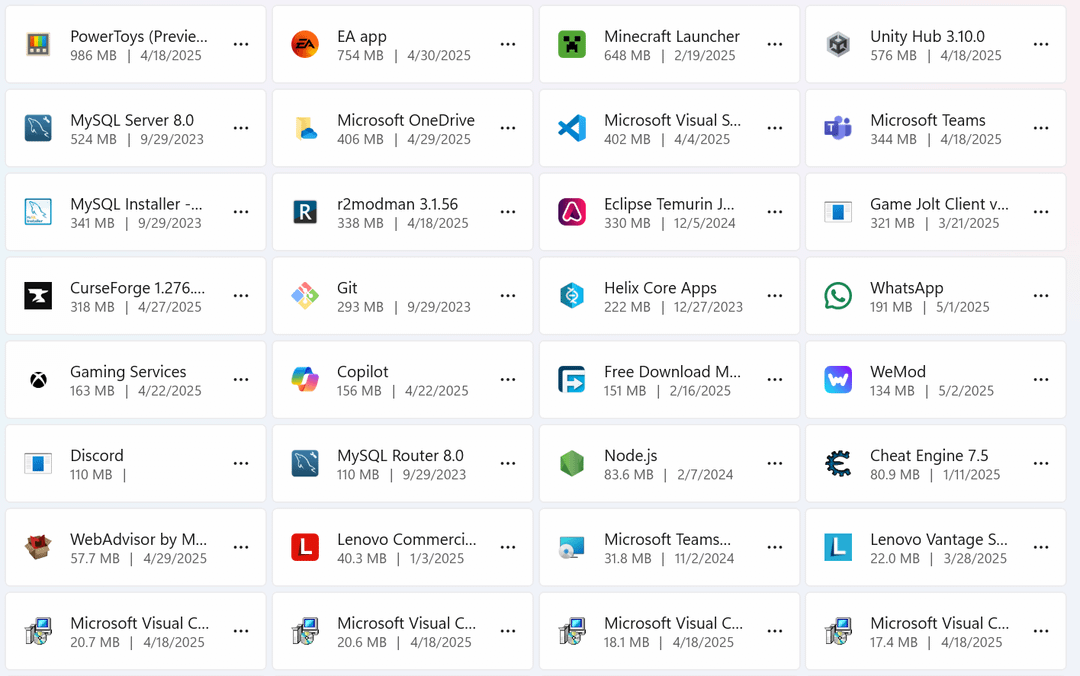
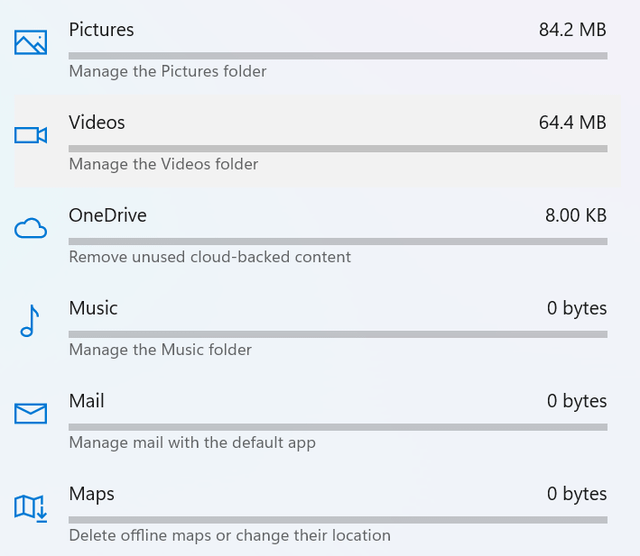
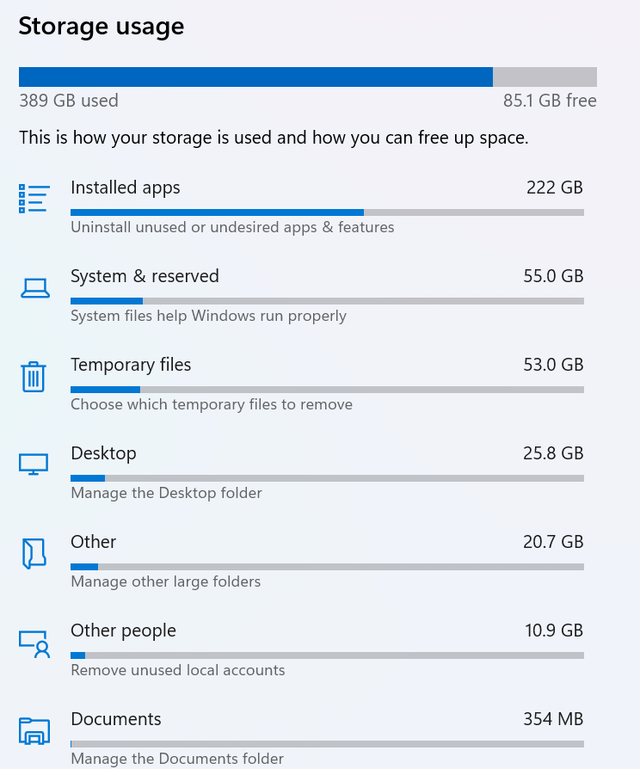
I feel like it roughly adds up. Windows doesn’t show all things installed. I see IntelliJ, so I assume you also have at least one JDK installed. Chrome and Edge have no used storage added to them. For a more detailed view you need a 3rd party application, as others suggested
1. Press **Windows + S** and type **”Disk Cleanup”**.
2. Click **Disk Cleanup** from the search results.
3. Select the drive you want to clean (usually **C:**) and click **OK**.
4. Check the boxes for the types of files you want to delete.
5. Click **OK**, then click **Delete Files** to confirm.
The-Ritzler
Do you have any Steam Workshop Downloads? That’s what was eating about 110GB of mine for a while.
just-_-just
Clear your steam cache. It’s in settings. I’ve picked up over 60 GB doing that.
If this is windows, type disk management in the search bar
jezevec93
The storage you see is reported by the apps and its often wildly inaccurate
Fantastic_Key_8906
Its usually temp files. There can be an enormous amount of garbage there unless you set it to empty now and then.
TheKingofTerrorZ
Get WizTree, super fast and easy to see at a glance what’s using all that space
XB_Demon1337
As another said, got get WINDIRSTAT. This will show you a pretty picture on where all your data is stored.
You will see certain files like hiberfil.sys and pagefile.sys. Ignore these two files for the most part. They can be quite large. My hiberfil.sys is 25GB, it is based on a few things, but just know to let it stay. Same with pagefil.sys, it can be 10-15GB. This is normal.
Look for large color boxes. These boxes will show you exactly where large files are. So if you for instance have a big file like a movie you downloaded, that will be easy to find. You should then also look for ALOT of tiles in one cube. This indicates a folder with a bunch of individual files. The WinSxS folder in C:/Windows/ is a good representation of this.
When looking at this image you should look where your Windows folder is and note that ‘zone’. This area you will ignore. But also look for a windows.old folder, and that one you can delete.
As you start to look around the colored boxes you will notice that all boxes together that are one color are going to be in one larger folder. You can use this to your advantage to locate zones quickly that could be deleted.
CoconutIntelligent42
Use [Windirstat](https://windirstat.net/) to analyze your storage use and find what’s taking up space and where.
Lxsse54
Tree Size. Amazing Program
beastwithin379
How many games do you have installed from steam/epic/etc? I used to install every game I owned until I realized I had no space left on my drive due to games I either haven’t played yet and don’t intend to anytime soon or don’t play anymore. Most aren’t that large but a few will eat 100s of gigs.
BNineSix
Try and delete the WhatsApp application
Crazyking224
If you have steam, make sure all your games are installed to there correct drive. Friend forgot he put space marines 2 on his ssd because it can’t run on a hard drive
GhonaHerpaSyphilAids
TreesizeFree
ceptenjeckspero
Download windirstat
flavicent
Windirstat?
Justjestar1
In windows explorer you can search for size:gigantic I believe and it will show any files over 128mb
You can use for file sizes between 4mb(?) and 128mb buts that’s rarely useful.
I’ve used this trick a few times to clear up old dodgy program installs without needing added bloat.
SLIFERZpwns
OP check and clear your recycle bin, and check if you have any crazy length videos / recordings of games. Good luck.




27 Comments
Your gonna wanna install a third party app for seeing that. windows sucks at showing you what is eating your space
I feel like it roughly adds up. Windows doesn’t show all things installed. I see IntelliJ, so I assume you also have at least one JDK installed. Chrome and Edge have no used storage added to them. For a more detailed view you need a 3rd party application, as others suggested
Best software recommended on Reddit I use since is [http://www.uderzo.it/main_products/space_sniffer/](http://www.uderzo.it/main_products/space_sniffer/) to check what where is taking the space.
use spacesniffer
https://preview.redd.it/kkpndzwymmye1.jpeg?width=549&format=pjpg&auto=webp&s=921721c8a4155f778b1fb0175c8b192894d3b591
I recommend Spacemonger for this. Visual representation of what is taking up storage and where, very useful.
Maybe its, [Windows.old](https://superuser.com/questions/1210451/what-does-windows-old-folder-contain)
To delete it go [here](https://support.microsoft.com/en-us/topic/kb5012334-delete-the-windows-old-folder-using-storage-sense-in-the-settings-app-e12f9d84-ad7f-4780-9406-465670157f8e) find out how
Also run disk cleanup If you have not.
Disk Cleanup in Windows 11:
1. Press **Windows + S** and type **”Disk Cleanup”**.
2. Click **Disk Cleanup** from the search results.
3. Select the drive you want to clean (usually **C:**) and click **OK**.
4. Check the boxes for the types of files you want to delete.
5. Click **OK**, then click **Delete Files** to confirm.
Do you have any Steam Workshop Downloads? That’s what was eating about 110GB of mine for a while.
Clear your steam cache. It’s in settings. I’ve picked up over 60 GB doing that.
Cheat engine …

I use [TreeSize](https://www.jam-software.com/treesize_free) when I run into this issue to see where the culrpit is.
If this is windows, type disk management in the search bar
The storage you see is reported by the apps and its often wildly inaccurate
Its usually temp files. There can be an enormous amount of garbage there unless you set it to empty now and then.
Get WizTree, super fast and easy to see at a glance what’s using all that space
As another said, got get WINDIRSTAT. This will show you a pretty picture on where all your data is stored.
You will see certain files like hiberfil.sys and pagefile.sys. Ignore these two files for the most part. They can be quite large. My hiberfil.sys is 25GB, it is based on a few things, but just know to let it stay. Same with pagefil.sys, it can be 10-15GB. This is normal.
Look for large color boxes. These boxes will show you exactly where large files are. So if you for instance have a big file like a movie you downloaded, that will be easy to find. You should then also look for ALOT of tiles in one cube. This indicates a folder with a bunch of individual files. The WinSxS folder in C:/Windows/ is a good representation of this.
When looking at this image you should look where your Windows folder is and note that ‘zone’. This area you will ignore. But also look for a windows.old folder, and that one you can delete.
As you start to look around the colored boxes you will notice that all boxes together that are one color are going to be in one larger folder. You can use this to your advantage to locate zones quickly that could be deleted.
Use [Windirstat](https://windirstat.net/) to analyze your storage use and find what’s taking up space and where.
Tree Size. Amazing Program
How many games do you have installed from steam/epic/etc? I used to install every game I owned until I realized I had no space left on my drive due to games I either haven’t played yet and don’t intend to anytime soon or don’t play anymore. Most aren’t that large but a few will eat 100s of gigs.
Try and delete the WhatsApp application
If you have steam, make sure all your games are installed to there correct drive. Friend forgot he put space marines 2 on his ssd because it can’t run on a hard drive
TreesizeFree
Download windirstat
Windirstat?
In windows explorer you can search for size:gigantic I believe and it will show any files over 128mb
You can use for file sizes between 4mb(?) and 128mb buts that’s rarely useful.
I’ve used this trick a few times to clear up old dodgy program installs without needing added bloat.
OP check and clear your recycle bin, and check if you have any crazy length videos / recordings of games. Good luck.
Windirstat
Treesize.