
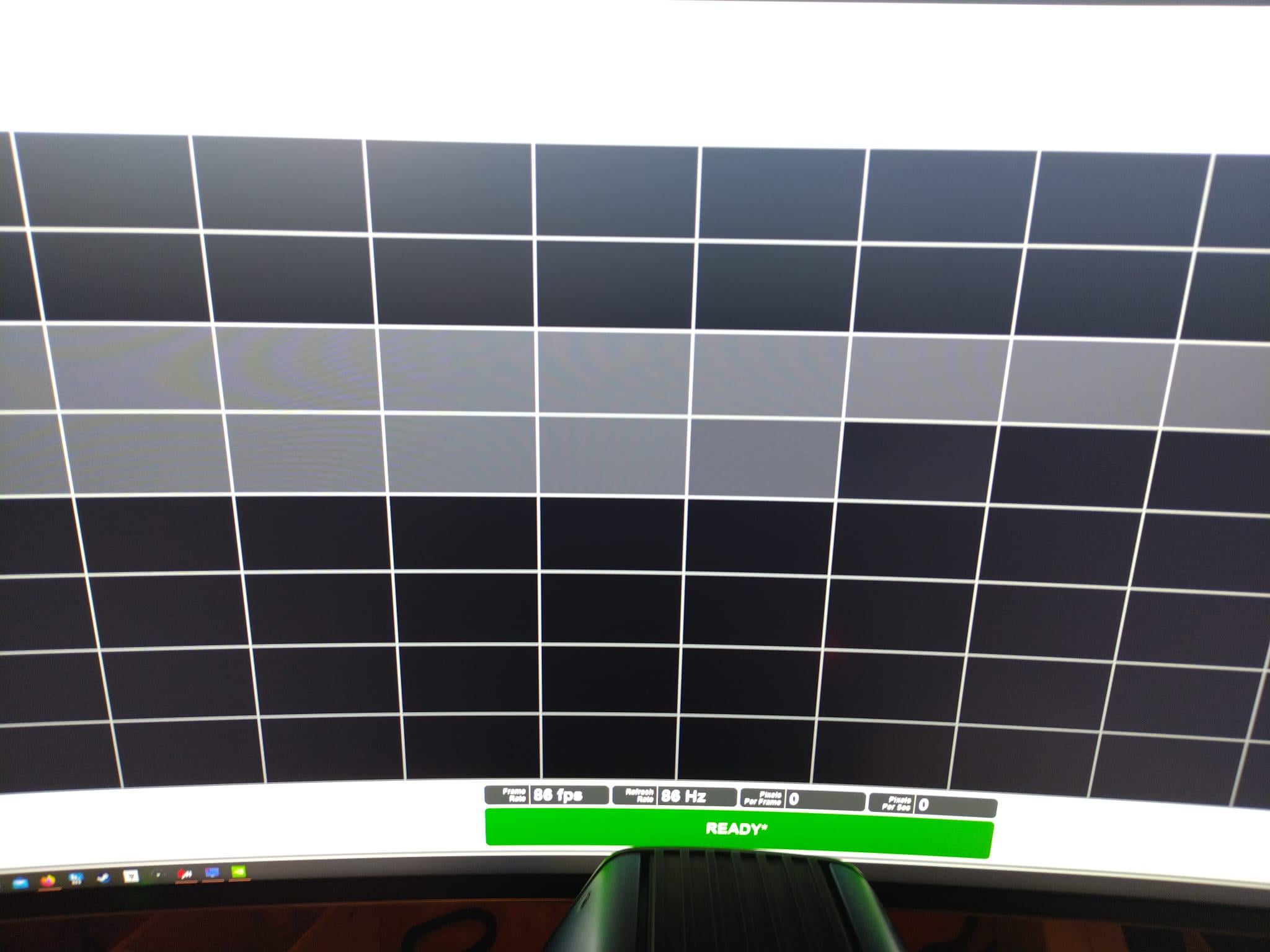
got my LG 38″ ultrawide from 75 to 86 hz. might not sound like much, but man the difference is pretty drastic. below 100-ish, every hz counts. even just the mouse cursor feels way smoother. honestly didn’t expect any OC headroom on this display (LG 38uc99). hasn’t broken freesync either it seems.
1 Comment
this is my sim rig screen, it’s huge, it’s beautiful it’s 3840×1600, and it’s old. i think this launched in 2016. i got it used for 220 bucks, and the form factor is in very short supply to this day. a 144hz screen would cost me around 1000 bucks still, and there seems to be barely any development in either new stuff or pricing of the old stuff in this segment. so i’m very happy i managed to squeeze another 13-ish % more refresh rate out of this one.
monitor OC is increadibly easy.
* on nvidia, go to control panel, resolution click create custom resolution
* add refresh rate and click “test) until the screen remains black for 10 seconds and then reverts to the previous res
* go back to the last setting that gave you a picture
* open the blurbusters frame skipping test, and take a picture of the screen with a camera set to long exposure.
* if you get continuous smears like the ones in the picture, your display isn’t skipping frames and you’re done.
* if you get gaps in the smears, your display is skipping frames, and you need to bring down the refresh rate until that stops happening (i had a samsung ultrawide once that let me set 120hz instead of the original 60, but just skipped frames. actual limit was at 93-ish, which was a massive improvement
monitor OC is really cool, cause in all honestly it’s the type of overclocking that likely has the most obvious impact on your gaming experience, and even makes just using the desktop better.