
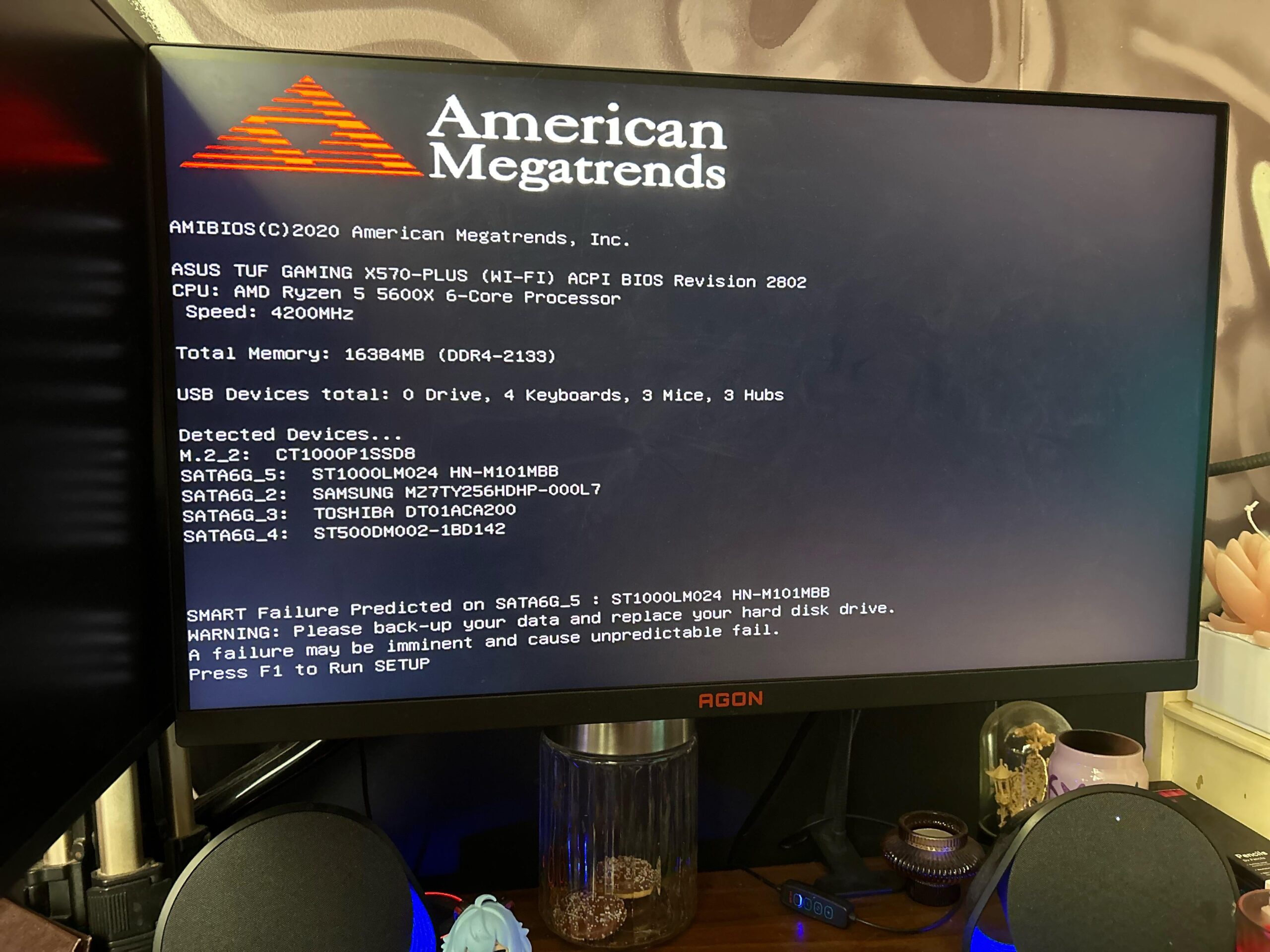
basically the title, i plugged everything back in exactly where it came out, i know which hard drive it’s talking about and as far as i can tell it’s fine – checked the SATA cable, power cable, plugged into other ports. can’t figure out why it could be showing this error, does anyone have any ideas? would massively appreciate it
40 Comments
Run CrystalDiskInfo and it’ll tell you the health of the drive, make sure it’s plugged in all the way.
Your drive is damaged and will likely fail soon.
>can’t figure out why it could be showing this error, does anyone have any ideas?
Because the firmware asked the drive if it was ok, and the drive said no.
Your hard drive is defective. It was likely already on its way out, but moving it around probably caused it to kick the bucket.
*Don’t use your damaged hard drive.* Unplug it. Put it aside. If you have data on it, it’ll get harder to recovery the more you use it. Leave it aside until you’re ready to begin recovery procedures.
It looks like you have an m.2 SSD yet you’re using a hard drive as your boot drive? You should move any data off of the m.2 and then install Windows on the m.2. Running the OS off of a hard drive instead of an SSD leaves your computer running much slower than it is capable.
Reinstall windows, get it up and running, then consider recovering data.
hey all, I appreciate all the suggestions, I’m not sure if there was actually anything of value that I can’t redownload or install in a couple of hours, but I’ve found a few other things that need doing. my current plan is as follows:
1. switch my windows installation over to my m.2 drive and set it as boot
2. back up the drive should it have anything important, completely replace and forget about it in a box if it has nothing I need on it
3. set up constant backups because that’s something I need to actually learn
4. learn how to bios
thank you all for the suggestions and help, I’ve discovered several things I need to do just from asking this one question
Once you replace the HDD make sure you enable XMP in the bios to make your ram run faster.
Replace ur hdd with a ssd
Which part of ”back-up your data and replace your hard disk drive” instruction shown on the screen seems unclear to you?
yeah its a common misconception to use canned/compressed air to clean PC’s coz of the refrigerant liquid that comes with it. that shit might damage it. always use those small handheld electric air blowers/dusters and hold the fans in place.
also im assuming u went for some serious deep cleaning. generally, u dont have to dissassemble or unplug any cables or anything other than the gpu for some basic cleaning which is usually enough with an electric air duster and a lint-free cloth.
i guess try using a new sata cable
no one is gonna talk about 4 keyboards and 3 mices?
Buy a new drive
When you say cleaned can you define what you mean?
One thing I’ve not seen here is that SMART can often flag a fail if the cable is damaged/not inserted properly. Try a different cable before doing anything radical.
Reading all the comments and barely any helpful information after 50+ comments, wtf pcmr?
“Do what it says, replace you hdd” na uh, from my experience software often LIES!
Anyway, as someone who deep cleans his PC when the dust bunnies begin birthing a third generation of dust bunnies and was troubleshooting the exact same “doesn’t boot after clean” issues.
First thing you should do is unplug the HDD’s and remember where they were plugged.
Clean the SATA ports on your motherboards and HDD’s with air (some blowdryers have a cold air option) often dust from other components can get stuck inside the ports, especially the RAM slot.
Check the cable and clean from dust also.
Replug everything and try to boot.
If that doesn’t work, unplug one HDD each time and try to boot and isolate the faulty drive.
Repeat first step of inspecting the hdd and SATA ports for dust, try to replace the cable.
If you have another PC, download macrium reflect and create a Bootable usb with macrium reflect recovery software which has useful info and tools diagnose problems with drives.
I had an issue where I installed my OS on a new m.2 SSD while having another OS on an HDD and the efi boot partition was on the HDD, so if the HDD failed I couldn’t boot into my SSD OS. But managed to recover it it with macrium, shrink the SSD and copy the boot partition to it from the HDD.
I really don’t like being that guy, but almost half of my job is telling people to read the error…
It’s saying that you should back up your data from the 1tb hard drive as soon as you can because SMART (a firmware based diagnostic) threw a “I’m fucking dying man, here take the briefcase and run”
If you haven’t noticed an issue that’s a good sign usually means it’s a slow death, go buy yourself a a replacement hard drive and copy pasta your data, GabeN help you if that’s your boot drive.
Happened to me before. Disable **SMART Self Test** in bios and the pc will turn on just fine (However take the advice and backup your important data incase the hard drive fails)
The S.M.A.R.T. Flag has been thrown on your drive. This means it could be failing soon. Or like me all but 1 time a SMART Flag was thrown there was nothing wrong with the drive, and I have some that survived from the 1GB, yes Gigabyte, age that still work but the stupid SMART Flag was thrown.
Go into the UEFI/BIOS and shut off SMART Monitoring for that drive, back up any info that is on it, and if in a while the thing starts to makes weird sounds or starts to shrink, or has any other issues remove the drive. Also remember if it is an SSD it won’t fail gracefully, it will most likely just stop working.
New PC time
You can try spinrite 6.0
Replace your failing hard drive with 1TB or more SSD if you need that extra storage.
It’s not your main boot drive anyway. You can just boot as usual and copy the data from that Samsung HDD.
It happens to me , SMART failure.
But when I put it as secondary drive after replacing C: then I still had access to to all files and could save them.
Your drive is soon to fail.
you can try crystal disk to check what kind of problem it is
but at this point i would just install on other drive
if you are just playing on this pc then just install fresh windows and games you play
if you want to go a bit deeper there is plenty of software to do copies of drives
i would suggest hirens boot on pendrive and using macrium reflect free but anything you get will prolly work 🙂
You can load up a S.M.A.R.T program (like HD Tune or some other freeware idk there’s too many to count) and see the actual “health” of a drive, get too many reallocated sectors and it’ll throw a code like that. I would back up any data on that drive in the inevitable future when it does fail. It might not fail tomorrow or in 6 months depending on how much data you write/read on that drive, but eventually all HDDs will fail, it’s just the nature of spinning rust.
Bro got the bad ending
Your 1TB SeaGate drive has told the BIOS that it’s not doing well and will likely fail soon.
He doesn’t need a different computer to do that.
Cannot believe so many upvktes for such a shitty answer.
1. It said it fails soon, not now, so just boot.
2.
Get a new hard drive. Put it in.
3. Get a USB stick, put hirens boot cd on it. Boot it.
Use the “mini xp” is that booted to launch explorer, just like regular windows explorer.
4. Copy the files you want to keep.
……
If your drive was an SSD. Use wizard XP home partition editor, also on “Hirens boot cd”, to make the partition smaller.
Because I guess your ssd failed because you did not account for “over provisioning”.
All ssd require unformatted space left over, unused. About 10%.
In short: that space is used to replace cells that have errors.
Without it, SSD drives fail.
Ce l’avevo anche io
Your drive has become self aware. It thinks it is stuck in the dryer and is about to get fucked by it’s stepbrother.
OP with their HDD when cleaning their PC:

U plugged sata cable back
I’m not surprised. My seagate died within a year of me buying it. I don’t bother with HDDs anymore
Probably a cable not seated correctly. Check connections and see what it says
I would really get a ssd when you backed up all the data
I would really get a ssd when you backed up all the data
Run performance test in bios it’ll tell you.
Run performance test in bios it’ll tell you.
4 keyboards 3 mice?
Youve somehow hacked into the nuclear warhead codes.
The only winning move is not to play
Recheck all cables, even if they look good unplug and replug them firmly one at a time. Check for dust particles that may have worked themselves onto the pins for the drives. Also reseat the cables at the motherboard side
The tri force