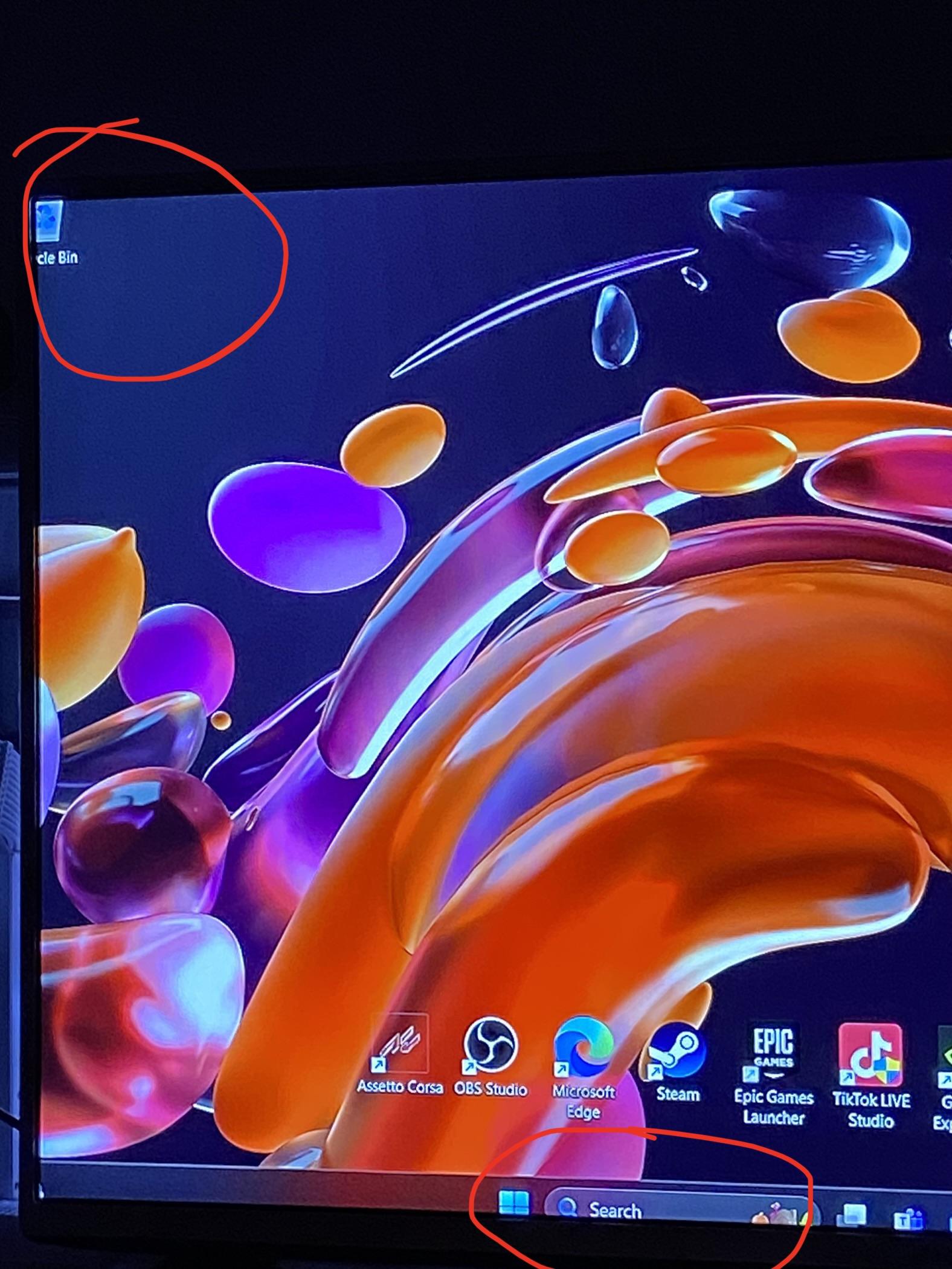
Your TV might have a setting for overscan. Should be set to full or none.
Putzcarl
Settings on your display. You can also check the resolution in Windows
CRTgamer
My LG TV does that sometimes, it has a feature called “Smart Zoom”. It’s really stupid and cannot be disabled.
multiwirth_
Disable overscan in your TV settings
A_Person77778
In the TV settings, there should be a scaling option, and pick the one called “just scan” or whatever your TV calls it
LazyMagicalOtter
Not your PC, that’s your tv doing overscan. Look for a setting on the tv itself, do not compensate from the PC.
Noxious89123
Not a PC issue, it’s a TV setting issue.
Look for a “PC mode” or different “scan” settings, such as “overscan” or “full scan”.
Be aware also that TVs introduce a signififant amount on input latency vs monitors. Monitors do not have any image processing.
Most TVs have a shit load of image processing. The input latency can easily be 100ms+ which will be noticable to most people. You flick your mouse, and after a brief pause the cursor moves.
Again, have a look for a “PC mode” or failing that try some of the different presets that your TV has. On my Sony, if I use “graphics” or “game” I get drastically less input latency, and also clearer text on the screen.
“Auto” or “general” does result in a better picture for TV or movie content though, so bear that in mind if you use this display for multiple purposes rather than as just a PC display.
Logical_Lemming
If your TV doesn’t have a “just scan” mode, you can compensate for overscan in NVIDIA Control Panel by going to “Adjust desktop size and position” -> “Size” -> “Enable desktop resizing”
AMD probably has the same setting somewhere, too.
trutenit
On some TV you also have to rename the input port (i suppose it’s an HDMI) to PC. By doing this the TV disable some post-processing and also the overscan.
ash549k
Set the input on your tv to PC
jared_jtm
No, but I bet Google does.
icanhazglass
Check overscan settings
No_Adhesiveness_7209
If there’s is no scan/overscan setting, also check your aspect ratio on the TV settings. It should be 1:1 I believe.
Repulsive_Fortune_45
Changing your tv/monitor refresh rate will fix it. This used to happen on my lg c2 when connected to pc

15 Comments
Your TV might have a setting for overscan. Should be set to full or none.
Settings on your display. You can also check the resolution in Windows
My LG TV does that sometimes, it has a feature called “Smart Zoom”. It’s really stupid and cannot be disabled.
Disable overscan in your TV settings
In the TV settings, there should be a scaling option, and pick the one called “just scan” or whatever your TV calls it
Not your PC, that’s your tv doing overscan. Look for a setting on the tv itself, do not compensate from the PC.
Not a PC issue, it’s a TV setting issue.
Look for a “PC mode” or different “scan” settings, such as “overscan” or “full scan”.
Be aware also that TVs introduce a signififant amount on input latency vs monitors. Monitors do not have any image processing.
Most TVs have a shit load of image processing. The input latency can easily be 100ms+ which will be noticable to most people. You flick your mouse, and after a brief pause the cursor moves.
Again, have a look for a “PC mode” or failing that try some of the different presets that your TV has. On my Sony, if I use “graphics” or “game” I get drastically less input latency, and also clearer text on the screen.
“Auto” or “general” does result in a better picture for TV or movie content though, so bear that in mind if you use this display for multiple purposes rather than as just a PC display.
If your TV doesn’t have a “just scan” mode, you can compensate for overscan in NVIDIA Control Panel by going to “Adjust desktop size and position” -> “Size” -> “Enable desktop resizing”
AMD probably has the same setting somewhere, too.
On some TV you also have to rename the input port (i suppose it’s an HDMI) to PC. By doing this the TV disable some post-processing and also the overscan.
Set the input on your tv to PC
No, but I bet Google does.
Check overscan settings
If there’s is no scan/overscan setting, also check your aspect ratio on the TV settings. It should be 1:1 I believe.
Changing your tv/monitor refresh rate will fix it. This used to happen on my lg c2 when connected to pc
Deinstall EGS and Tiktok