

Content Creator CS2 Kitchen has published a full PC optimization guide for Counter-Strike 2. After a clean Windows install and a series of tweaks, his average FPS rose by almost 40%. His rarest frame drops also became much smaller, with the P0.1 value up by 27.6%.
The guide is interesting because the hardware stayed the same in both tests. The extra frames came from drivers, system settings, BIOS options and a few small tools. Therefore, players with a similar setup can see exactly which steps he took and in what order.
read more
Test System and Starting Point
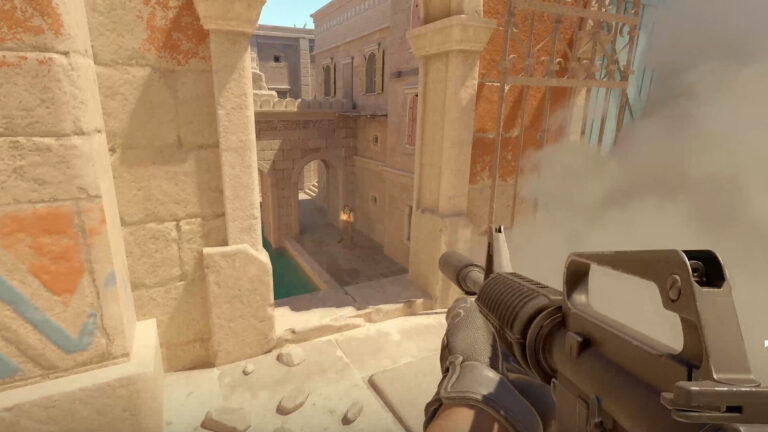
The creator ran his tests on the Dust2 benchmark map. First, he measured performance on a fresh install. After that, he repeated the run once all optimizations were in place.
His PC has an Nvidia RTX 5070 Ti graphics card and a 9800X3D processor. It also has a Gigabyte X870 Aorus Elite WiFi7 ICE motherboard and runs Windows 11 26H2 with driver version 621.01. The memory ran at default settings (CL 30, H die, 6000).
Benchmark Results on Dust2
On the fresh install, the average FPS was 820.7. The P1 value was 315.6, the 1% low average was 286.1, and the P0.1 value was 268.7.
After the optimizations, the average FPS reached 1145.9, which is 39.6% higher. In addition, the P1 value rose by 21.7% to 384.2, and the 1% low average grew by 26.4% to 361.6. Finally, P0.1 climbed by 27.6% to 342.8.
Drivers, Hardware Checks and Power Plan
The first step was to install fresh chipset and graphics card drivers. He also removed unneeded software by hand and did not use third-party scripts.
Next, he checked in GPU-Z that the graphics card ran in x16 mode. According to the guide, the top M.2 SSD slot can sometimes cut the lanes to x8. He also made sure the cooling was good enough to avoid throttling.
His third change may surprise many players. He chose the Balanced power plan instead of High performance. On AMD X3D processors, he says, this plan delivers more frames.
Process Lasso, BIOS and Graphics Card Settings
In Process Lasso, he removed the first physical core from cs2.exe by unticking CPU 0 and CPU 1. As a result, the game no longer shares that core with the system.
He then installed the latest stable BIOS, turned on the XMP/EXPO memory profile and kept the security settings. In the BIOS, he also lowered the processor voltage. This undervolt keeps the chip cooler, so it can hold its top clock speeds for longer.
Finally, he unlocked the power limit of the graphics card in MSI Afterburner by moving the Power Limit slider all the way to the right. This step helps prevent FPS drops in smoke.
 Photo Copyright by CS2 Kitchen. Source: x.com
Advice for Lower-End PCs
The creator also has a tip for owners of weaker computers. In his view, they should not chase high numbers. Instead, he recommends combining G-Sync, V-Sync and Reflex for a smoother picture.
read more

Conclusion
According to the CS2 Kitchen guide, a clean Windows install plus careful tuning raised average FPS on Dust2 from 820.7 to 1145.9. The 1% low average improved from 286.1 to 361.6, and P0.1 improved from 268.7 to 342.8. Meanwhile, the hardware did not change at all.
This matters for CS2 players because stable frame rates help just as much as a high average. The same PC delivered far more frames and smaller drops once the drivers, power plan, core assignment, BIOS and graphics card limits were set up properly. Players with weaker systems, however, can take the simpler route and rely on G-Sync, V-Sync and Reflex for a smoother game.