
With modern PC games continuing to push the trend of increasingly demanding requirements on PC hardware, default — and especially maximum — graphics presets often miss that coveted sweet spot between performance and visuals. Nioh 3 is expected to be no exception to this rule. Unfortunately, early impressions from the gaming press and community alike show a mixed bag of technical behavior across a multitude of PC setups, with reports of lower-than-expected framerates, high CPU usage, and other miscellaneous technical issues.
Consequently, this guide’s purpose is to help you attain an optimal balance between performance and visuals in Nioh 3. We shall detail how each and every graphics setting impacts performance and visuals, and establish our optimized graphics settings table to give you a quick and efficient way to get the most out of your Nioh 3 experience.
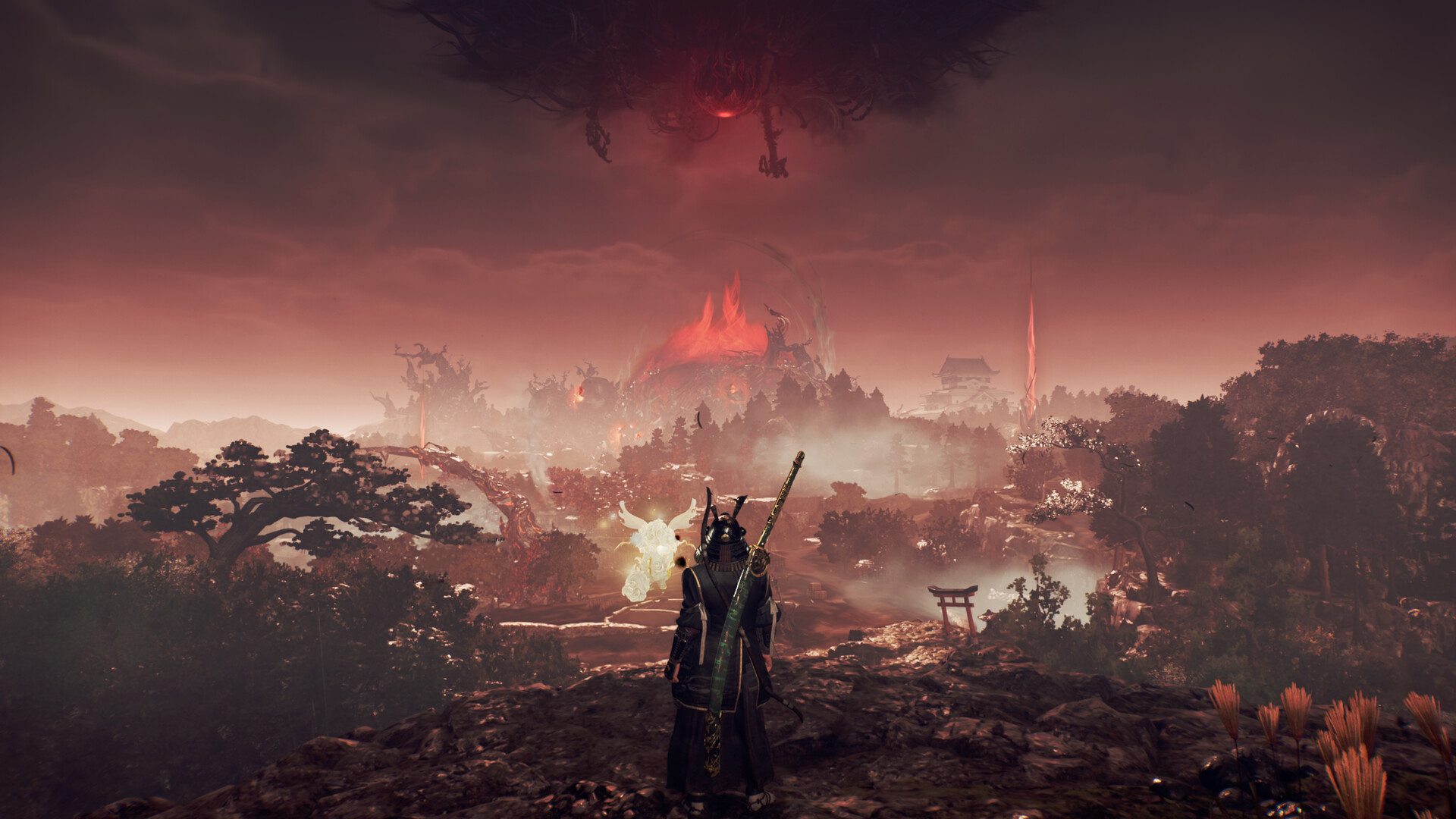 Nioh 3 is the first entry in the Nioh franchise that boasts an expansive, open world map. Source: Steam
A Short Technical Overview Of Nioh 3
Released on February 6, 2026, for PC via Steam and other gaming platforms, Nioh 3 is the latest action RPG from Team Ninja and Koei Tecmo, continuing the dark samurai series with an ambitious semi‑open world and refined combat built on the franchise’s signature blend of precision and intensity. Early impressions and reviews praise its deep combat systems and expansive environments, but many PC players and critics have also called out optimization and technical inconsistencies, from low framerates — even on powerful rigs — to technical bugs and limitations relating to both visuals and performance.
TierCPUGPURAMStoragePerformance TargetMinimumIntel Core i5‑10400 / AMD Ryzen 5 2600NVIDIA GeForce GTX 1060 6 GB / AMD Radeon RX 5600 XT 6GB16 GB125 GB (SSD required)1080p @ 60 FPS — Standard preset “with upscaling.”RecommendedIntel Core i5‑10600K / AMD Ryzen 5 5600XNVIDIA GeForce RTX 3060 Ti 8 GB / AMD Radeon RX 6700 XT 12 GB16 GB125 GB (NVMe SSD recommended)1080p @ 60 FPS — Standard preset “with upscaling”The Nioh 3 system specs. Source: Steam
Possessing a gaming computer with specs that rival (or even beat) those that are recommended by the Nioh 3 developers, sadly, does not guarantee that the game will maintain its reported performance targets, especially in the expansive, open world areas with lots of enemies, effects, and performance-heavy assets and effects such as foliage and various alpha transparencies. This strongly highlights — in our opinion — a pressing need to squeeze some extra performance out of the game, without completely murdering its visual fidelity and identity.
Let’s get the good news out first: the game thankfully does have an extensive PSO/shader compilation step, which was very effective in our time with the game, as we couldn’t spot any shader compilation stutters with any newly rendered effects or assets. However, the game can suffer from some occasional traversal hitches in the open world areas.
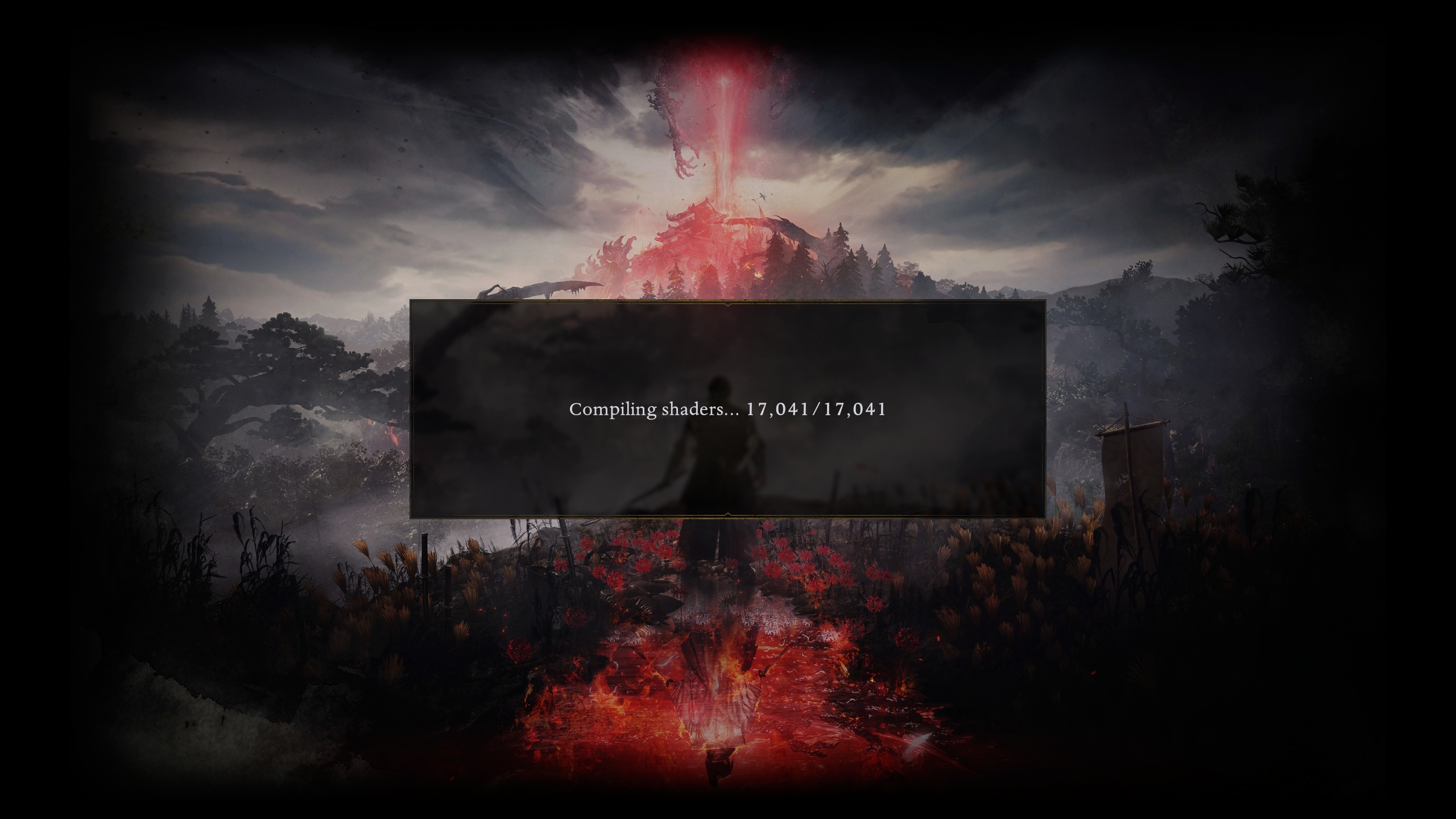 The Nioh 3 PSO compilation step
Now here comes the bad news: like many previous Katana Engine games, Nioh 3 still exhibits some technical quirks at unlocked framerates. Many players have noticed that if the game’s framerate isn’t consistently tied to a specific target (such as 60 FPS or 120 FPS), the game can feel uneven or jittery, which in reality is related to the camera movement when you pan or rotate it. Further, this issue can unfortunately rear its ugly face even with VRR (Variable Refresh Rate) monitors. This seems to be a symptom of how the engine handles temporal timing, as camera motion and physics can get out of sync when the framerate floats between standard thresholds, resulting in noticeable micro-stutters and uneven motion. On top of that, certain visual effects, such as shadows, can fail to render properly (if at all) if the framerate is uneven.
As a result, we strongly recommend that players prioritize achieving a consistent locked framerate — ideally 60 or 120 FPS, depending on system specs, or higher if you are using frame generation — to avoid uneven camera motion and other visual irregularities that may occur when the framerate fluctuates. Should your system fail to maintain a stable framerate even at lower graphics settings, the only practical options currently may be to adhere to a lower locked target, wait for patches or community mods that may mend or at least mitigate these issues, or consider a refund if possible, as these technical issues are simply unacceptable for a AAA PC release in 2026.
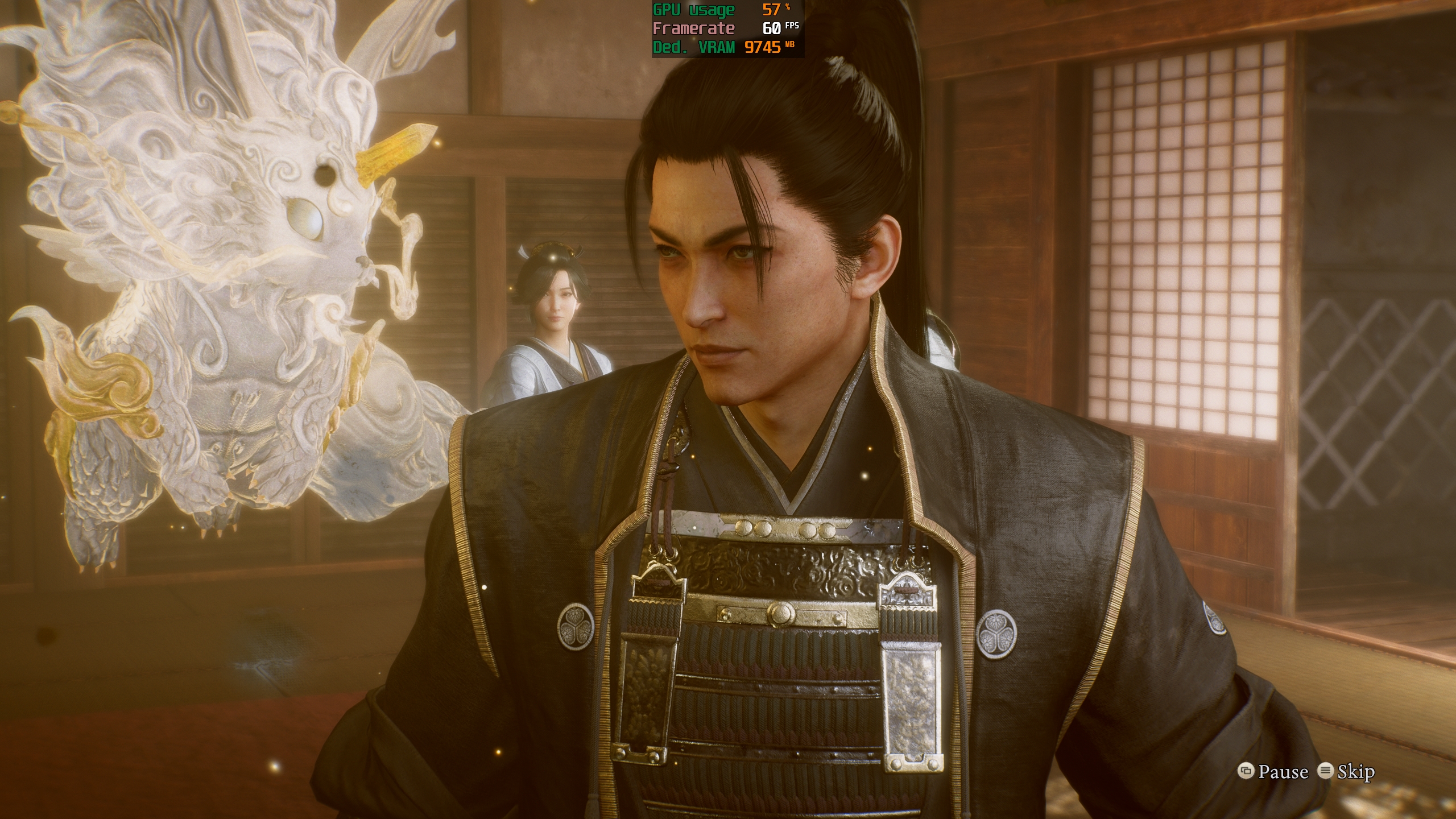 Another unfortunate technical issue with the game is that its cutscenes are locked to a maximum of 60 FPS, though with an option to boost their smoothness to 120/180/240 FPS with frame/multi-frame generation technologies.
A Deep Dive Into Nioh 3’s Graphics Settings
We will be checking out the various graphics settings in Nioh 3 in detail in this section, using comparison videos that should hopefully accurately portray both the graphics and performance (AKA framerate impact) of each setting quality, thus allowing us to determine which settings strike the best visuals/performance balance, which is the basis for establishing optimized graphical settings in this game, or any other game for that matter.
Further, the graphics settings comparisons in this section have all been made on a system with the following relevant specs:
CPU: Intel Core i7-14700K;
RAM: 32 GB DDR5-7000 CL34;
Storage: 2 TB PCIe 4.0 NVMe SSD;
GPU: NVIDIA GeForce RTX 4090;
Operating System: Windows 11 25H2;
All system firmware, drivers, BIOS, and OS updates were fully applied before testing.
In addition, all of the comparisons were done under fully GPU limited scenarios at a resolution of 2560×1440 (1440p) with DLAA — native resolution DLSS Super Resolution Preset K with sharpness set to 0 — as this game lacks any temporal anti-aliasing solution other than the three main temporal upscaling solutions from the three major GPU vendors (DLSS Super Resolution, FSR 3.1 upscaling and XeSS 2 upscaling). Furthermore, please be aware of the fact that lowering GPU-heavy graphics settings will not affect the game’s performance if the rest of your system isn’t powerful enough to keep up with your GPU.
Also, it is important to disclose that we used the Nioh3Fix mod — that’s made by prolific PC gaming modder Lyall — to unlock the game’s max framerate to fully gauge the performance effect of every graphics setting, as the game is by default only allows up to a maximum of 120 FPS.
With that said, let’s take a look at the game’s various graphics settings menus:
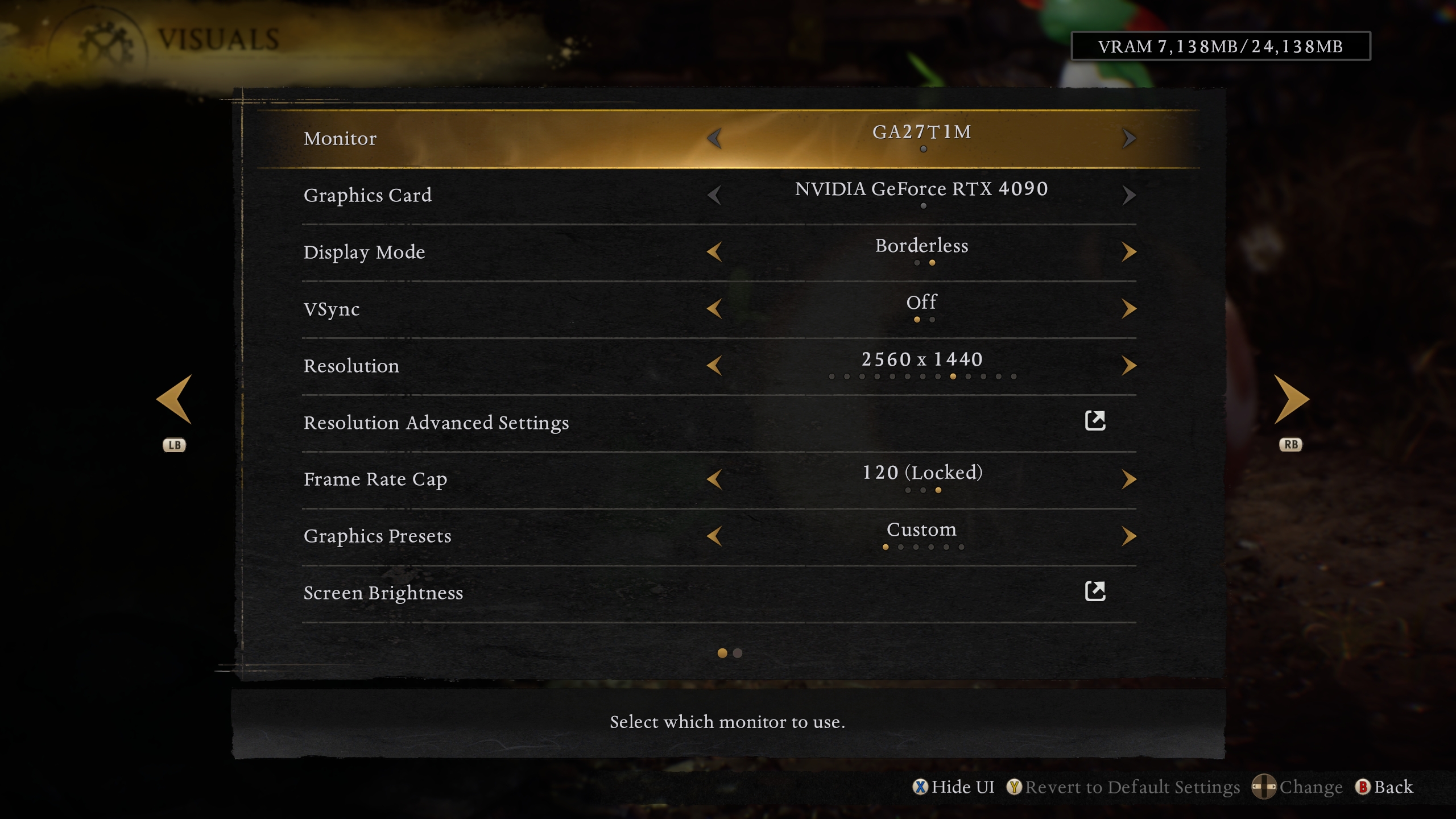 The “Visuals” menu – Part 1
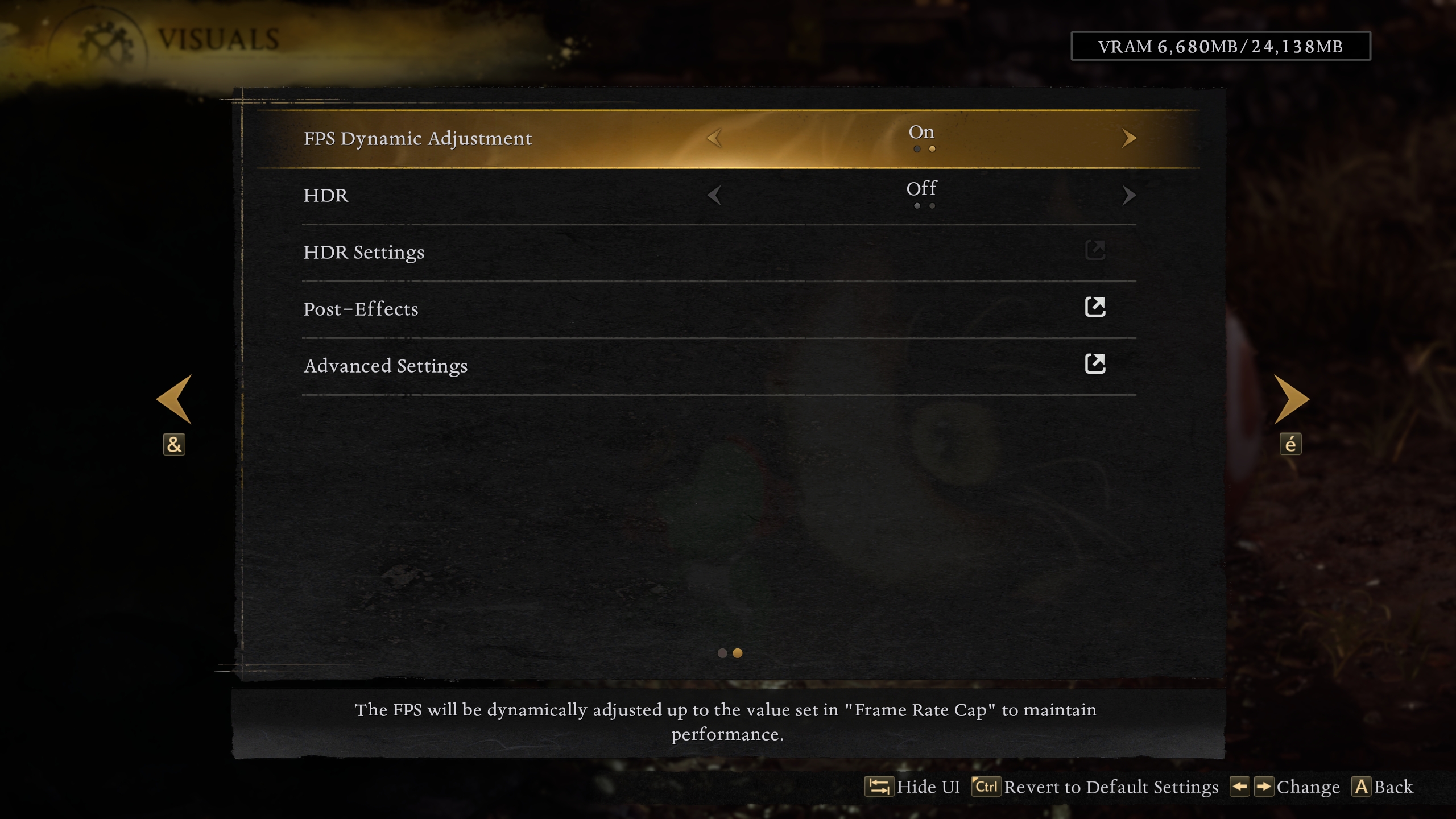 The “Visuals” menu – Part 2
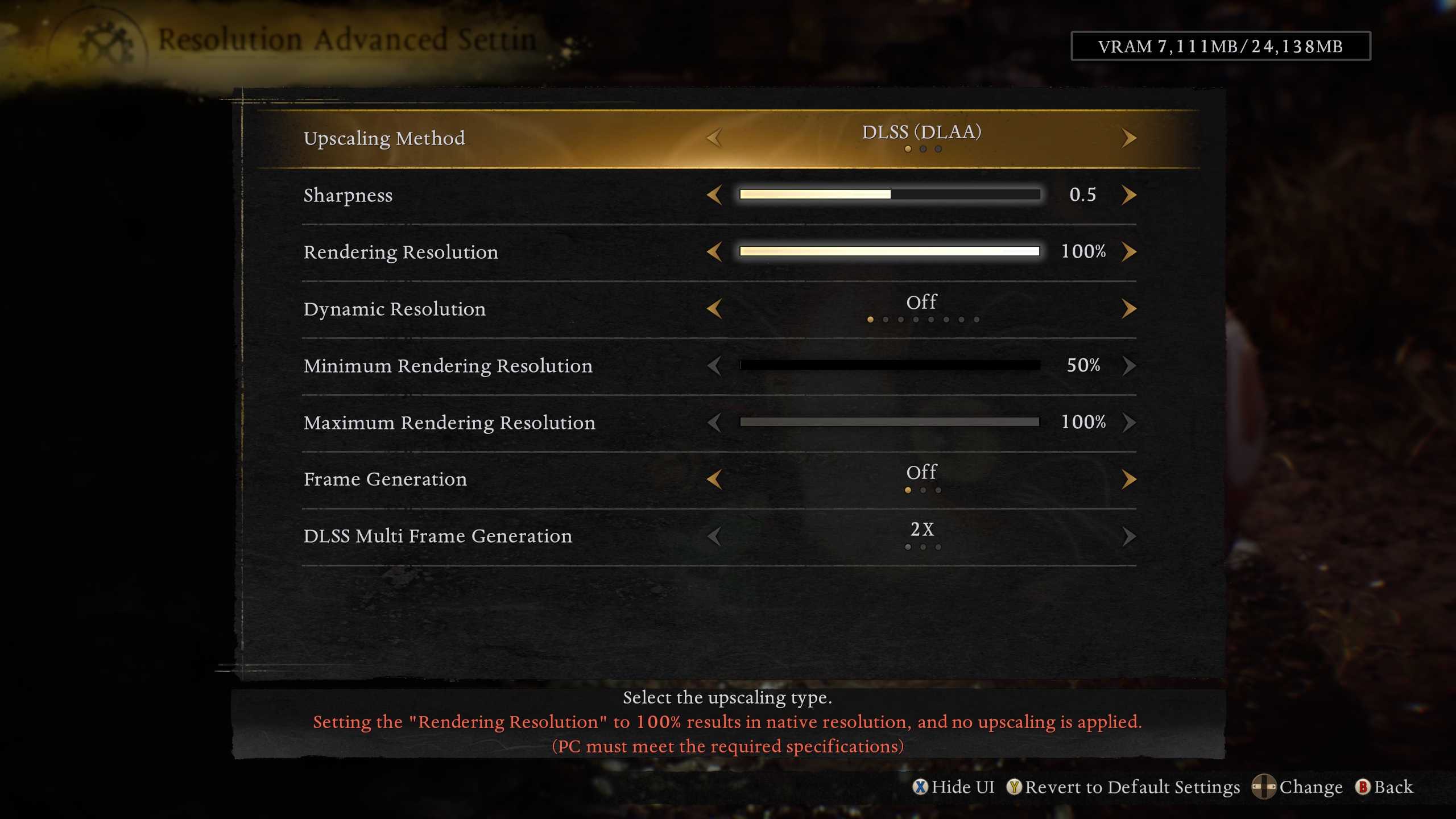 The “Resolution Advanced Settings” menu
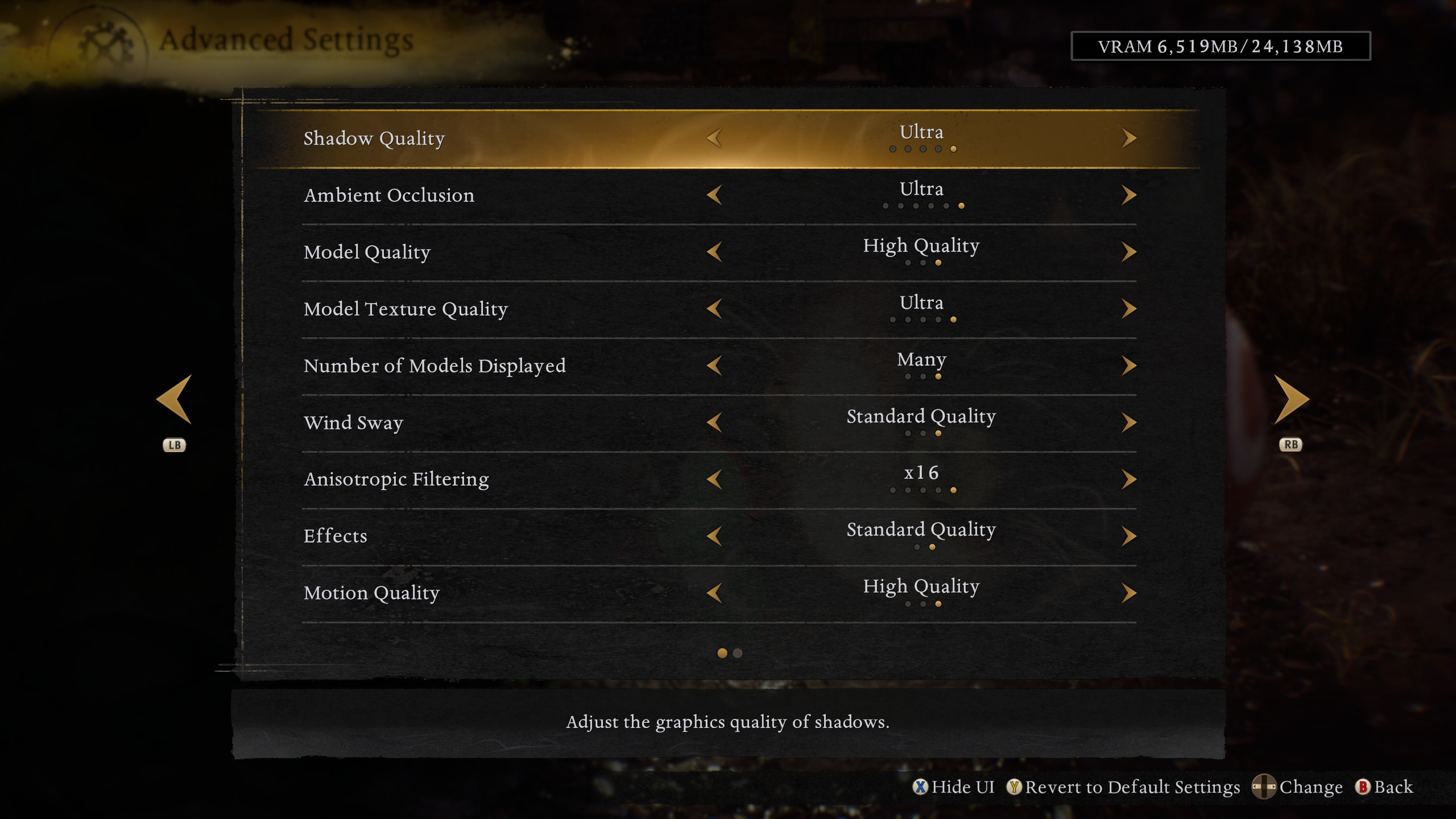 The “Advanced Settings” Menu – Part 1
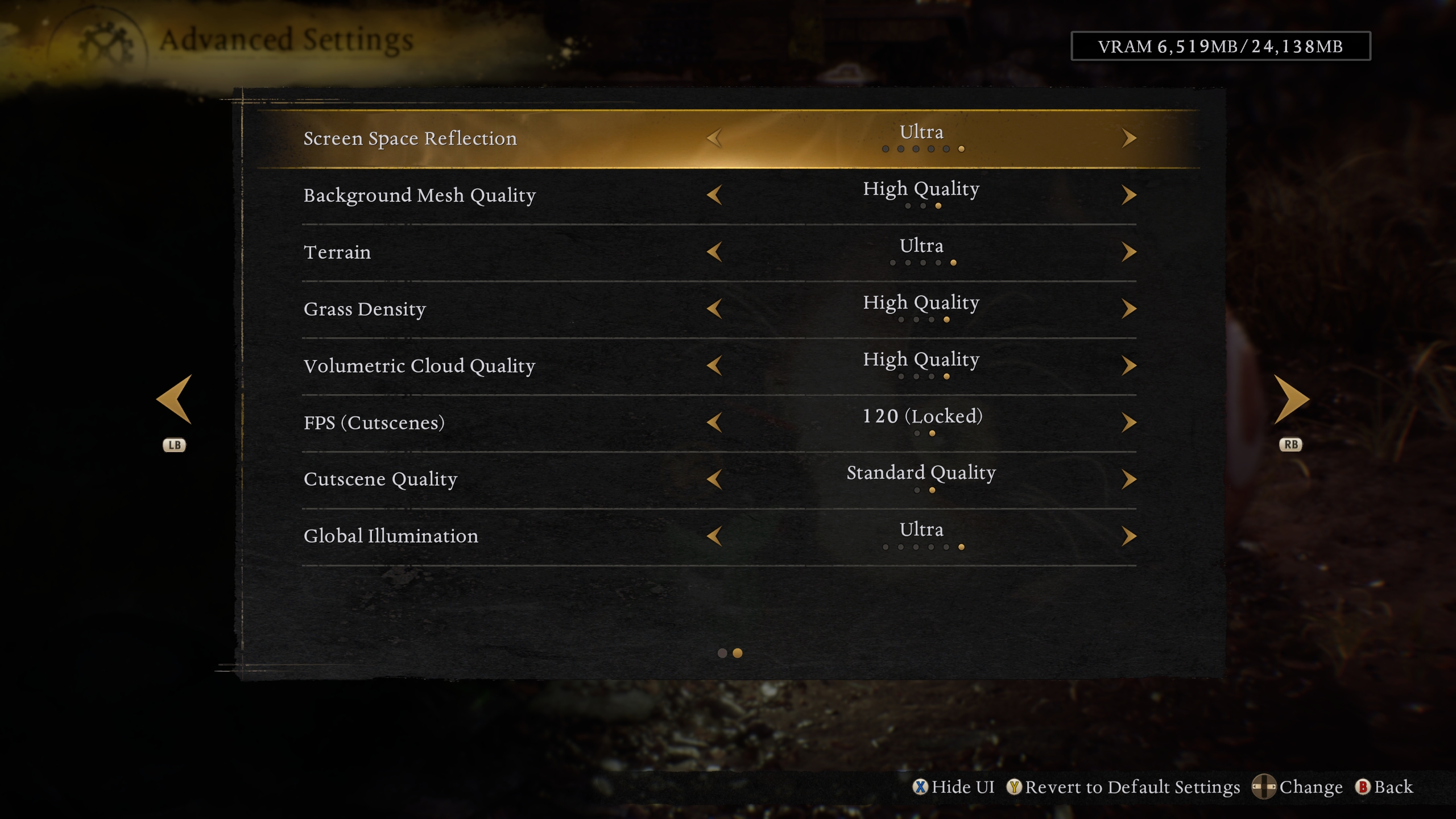 The “Advanced Settings” menu – Part 2
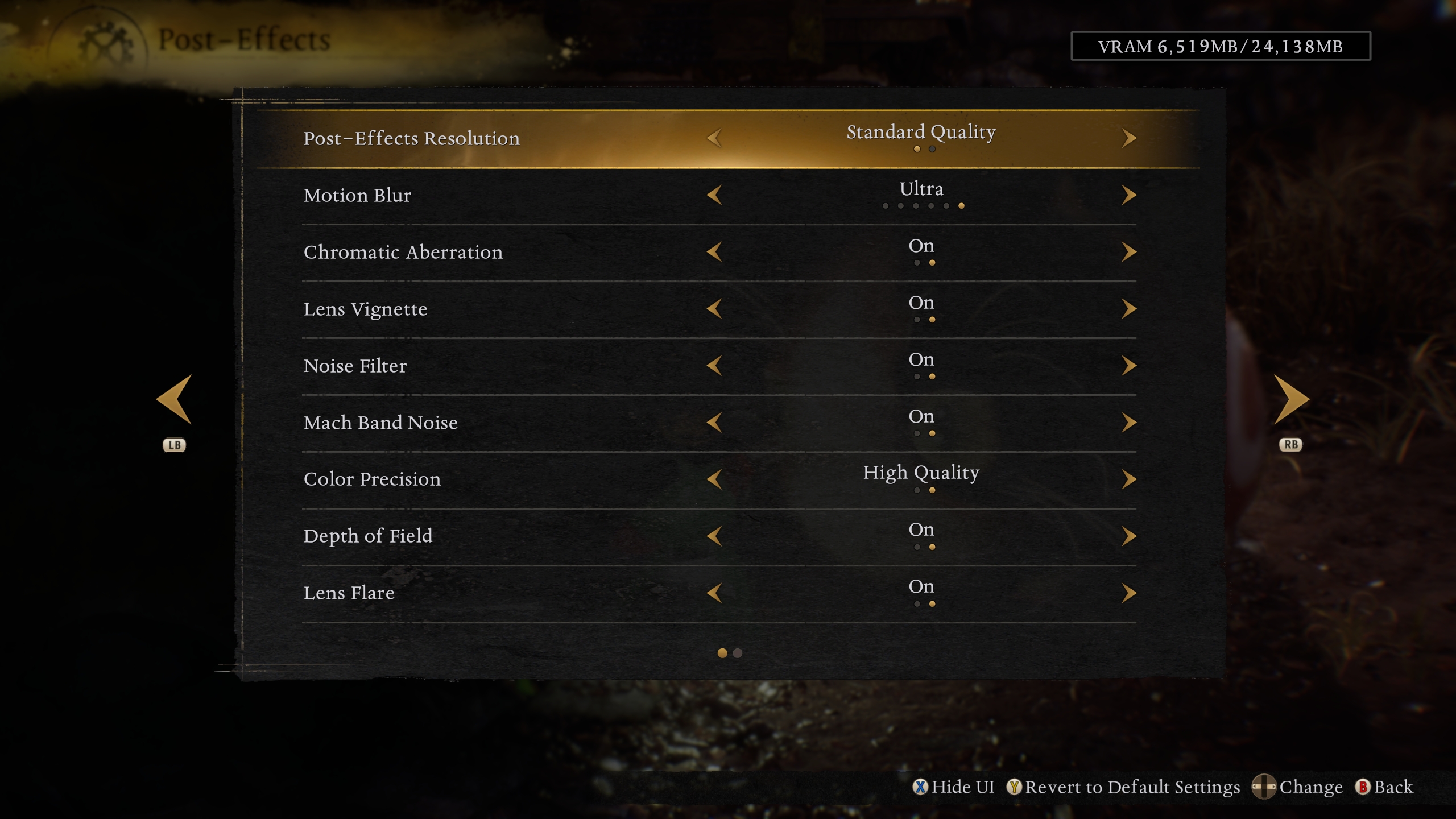 The “Post-Effects” menu – Part 1
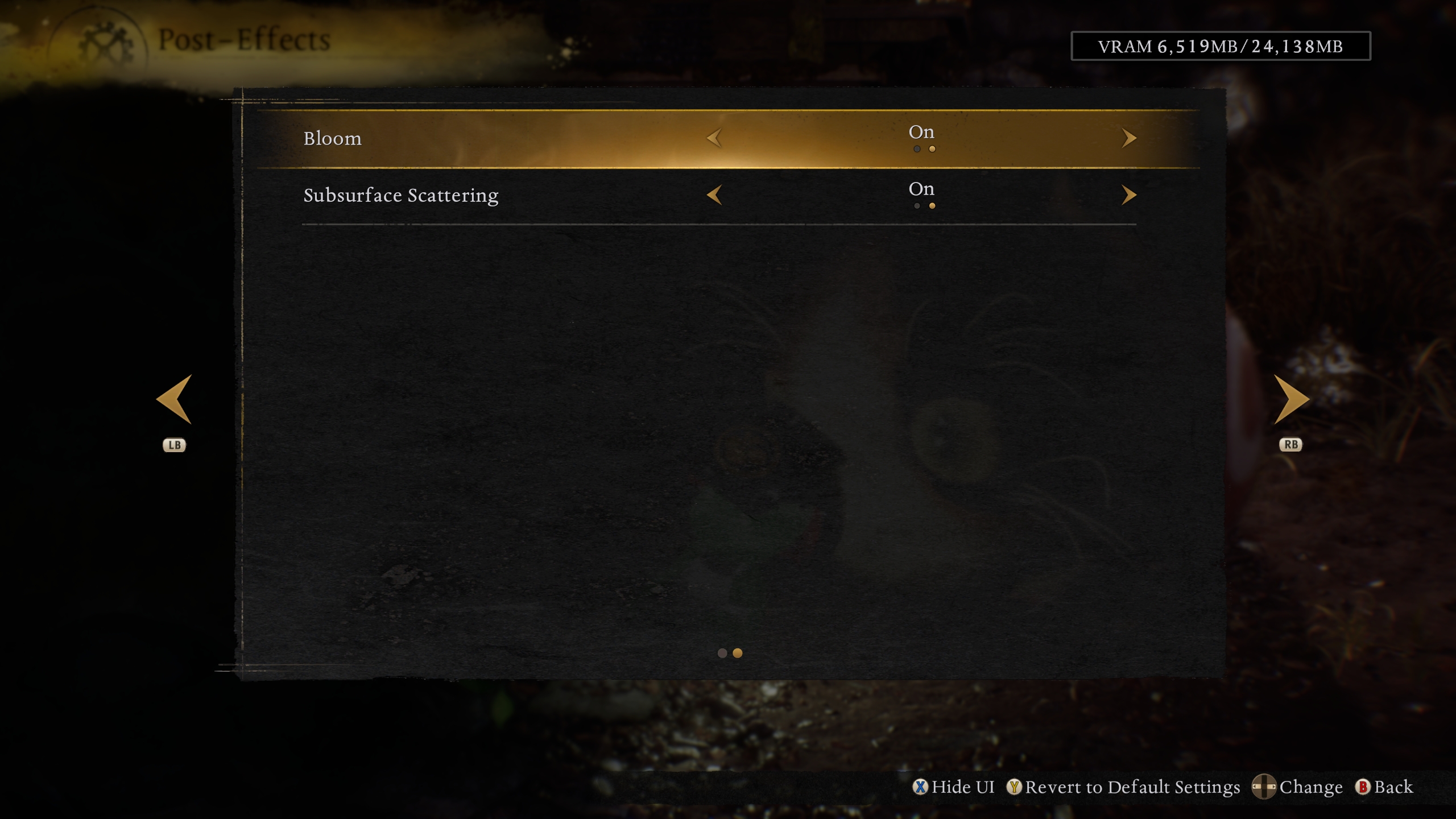 The “Post-Effects” menu – Part 2
As we can see, the game has a really expansive graphics settings menu, which is rife with multiple sections that each contain a certain subset of tweakable graphics settings. Let’s break down what each section has in terms of settings:
This is the main graphics settings menu of the game. It contains classic graphics settings such as resolution, vertical sync (V-Sync), display mode, etc. It also allows setting the game’s various graphics presets — which we shall explore later — not to mention that it’s also the main menu through which all the other graphics settings sub-menus can be accessed.
The Resolution Advanced Settings menu:
This menu contains options to enable your chosen anti-aliasing/temporal upscaling solution, which are DLSS Super Resolution, FSR 3.1 upscaling, and XeSS 2 upscaling. That’s right: this game doesn’t have its own TAA (temporal anti-aliasing) solution and instead relies on the aforementioned solutions to handle its anti-aliasing and temporal upscaling. This menu also has an interesting dynamic resolution scaling option, which interlinks with the Visuals menu’s “Frame Rate Cap” and “FPS Dynamic FPS Adjustment” options to target a chosen framerate target by dynamically altering the input resolution from a minimum value of 50% up to a maximum value of 100%. In our experience, this option can work quite well to attempt to maintain certain framerate targets — 30 to 120 FPS with 15 FPS increments — provided, of course, you’re actually limited by your GPU’s performance. Further, this menu also allows the enablement of frame generation technologies — such as DLSS Frame Generation/Multi Frame Generation, FSR 3.1 Frame Generation, and Xe Frame Generation — which will allow you to hit double/triple/quadruple your smoothness (depending on the chosen FG technology/mode) at the cost of increased latency and potentially visible artifacts.
The Advanced Settings menu:
The Advanced Settings menu harbors the bulk of the graphics settings that actually impact the visual make-up and performance of the game. Our guide will largely focus on options from this menu due to the aforementioned reason.
This menu largely contains classic post-processing graphical effects, such as motion blur, vignette, depth of field, etc. This menu’s options aren’t very consequential to the game’s main visuals, and they also don’t seem to impact performance much, as we shall see in a comparison video later.
Important note: The comparison videos below have a CapFrameX/RTSS based overlay that contains performance data regarding two metrics that we feel are relevant to gauge the performance profile of each graphics setting, which are GPU usage — which should always be close to 99% in order to prove that we’re fully GPU limited — real-time framerate (FPS) and dedicated GPU memory (VRAM) usage.
With that said, let us finally explore the performance and visual outlook of each relevant graphics setting that the game exposes, beginning with the game’s individual graphics presets, which can be changed from the main “Visuals” menu:
Graphics Presets
From the above video, we can unfortunately see that the game doesn’t really seem to be that scalable in terms of both visuals and performance with most of the presets, except the two lowest quality presets, which seem to seriously start sacrificing visuals for performance. Furthermore, another unfortunate matter to report is that changing the graphical presets also fiddles with the game’s internal rendering resolution, and seems to inexplicably target a 60 FPS lock with a dynamic resolution scaling algorithm, even when the system in question is capable of much more! This is simply a bizarre choice from the developers, in our opinion, and should absolutely be better communicated to potentially unwitting gamers.
Next, let us look at the individual settings from the game’s “Advanced Settings” sub-menu:
Shadow Quality
The “Shadow Quality” setting controls the quality of the game’s rasterized shadow maps (mainly their resolution and filtering). Surprisingly, higher levels of this setting weren’t too demanding on our GPU, so we recommend opting for the “High Quality” level of this setting.
Ambient Occlusion
The “Ambient Occlusion” setting controls the quality of the simulation of objects’ exposure to ambient lighting. The “Standard Quality” level of this setting in our experience seems to strike the best balance of visuals and performance, so we recommend it here.
Model Quality
The “Model Quality” should control the quality of the game’s assets, meshes, and models in terms of polygon count. However, since we didn’t spot any differences in performance/visuals between all of its levels, we recommend leaving it on the “High Quality” level.
Model Texture Quality
The “Model Texture Quality” setting should impact the texture resolution of the game’s various models, meshes, and assets. We noticed a very subtle difference between the highest and lowest levels of this setting, though we also didn’t notice any difference in terms of dedicated VRAM usage. As such, we recommend leaving this setting on its maximum value (“Ultra Quality”) unless you’re running out of VRAM and want to potentially alleviate VRAM consumption.
Number of Models Displayed
This setting should control the number of visible NPCs at a given moment on-screen. We couldn’t really spot any differences in either visuals or performance in our testing — at least in the areas that we tested — so your mileage may vary when it comes to your specific setup and potentially later game areas. Our recommendation is to just leave this setting at its maximum “Many” value.
Wind Sway
We couldn’t really spot any visuals/performance differences with this setting’s quality levels in our testing, in either the grass/foliage or other objects that are prone to swaying with the wind, such as flags. Therefore, we recommend leaving this setting at its max value — which is Standard Quality — unless you’re somehow noticing a difference in visuals or performance with it on your particular setup.
Anisotropic Filtering
This is a classic graphics setting that basically all modern PC games should have, and should also be set to its maximum value (16X) unless your GPU is absolutely struggling to maintain your target framerate.
Effects
The “Effects” setting seems to control the quality of the game’s special effects, such as GPU-accelerated particles or certain alpha transparencies. The “Low Quality” level seems to perform the “Standard Quality” level of this setting without looking noticeably inferior to it, so we therefore recommend it.
Motion Quality
This setting potentially controls the animation quality of NPCs and player characters, and is completely irrelevant for GPU performance. We recommend fiddling with this setting only if your CPU is struggling in this game and you’re chasing every bit of extra performance possible.
Screen Space Reflection
The “Screen Space Reflection” expectedly seems to control the quality of the game’s screen space reflections, which are especially noticeable on large puddles and pools of water or other reflective liquids. Setting this setting to “Off” completely turns off SSR, which is not something we’d recommend. What we would recommend, however, is choosing the “High Quality” level of this setting as it seems to give the highest visuals/performance bang for your buck.
Background Mesh Quality
This setting controls the quality of distant geometric meshes in the game, so it is probably related to the object level of detail (LoD). We recommend the “Standard Quality” level as — in our opinion — it strikes the best visuals/performance ratio in this game.
Terrain
The “Terrain Quality” setting seems to control the quality of the terrain’s “tesselation” bumpiness) via the usage of bump mapping on its higher quality levels. Maxing out this setting made no difference in performance (vs the lowest level) on our RTX 4090, and that would probably be the case on any half-decent modern GPU from the last 5 years or so. Therefore, we recommend leaving this setting on the maximum “Ultra Quality” value.
Grass Density
The “Grass Density” setting controls the… Density of grass and foliage in the game world. We feel that the “Low Quality” value provides the best balance of visuals and performance for this setting, so we recommend it.
Volumetric Cloud Quality
This setting controls the quality, or more accurately, the presence of volumetric clouds or fog. Setting this setting to “Very Low Quality” seems to completely do away with volumetric fog, so if you don’t like its effect aesthetically, this is how you can disable it. Otherwise, we recommend using the “Standard Quality” level as it strikes the optimal balance of visuals and performance for this setting in our opinion.
FPS (Cutscenes)
This setting is a toggle to select the maximum framerate that the game’s cutscenes will run at. You can choose between 30 FPS or 60 FPS limits. It is also possible to use frame generation technologies to further boost cutscene smoothness, at the expense of extra visual artifacts and an obviously completely irrelevant extra latency in this case.
Cutscene Quality
This setting should control the game’s quality of cutscene rendering. However, we couldn’t really spot any differences between its two levels, and since cutscenes are locked to 30 or 60 FPS, we recommend leaving this setting on “Standard Quality”. This setting is also obviously completely irrelevant for in-game performance and visuals.
Global Illumination
The “Global Illumination” setting — which is the very last but certainly not the very least setting in the “Advanced Settings” graphics sub-menu — is the setting with the highest impact on both the game’s visuals and performance. Setting this setting to either extreme — “Ultra Quality” or “Very Low Quality” — is ill-advised in our opinion, as you’d be sacrificing either visuals or performance at the expense of the other. However, since higher settings are still too demanding in our opinion for the visuals that they provide, and that lowering other settings don’t seem to improve performance much, we therefore found ourselves in need of recommending that players opt for the “Low Quality” level of this setting, in an effort to claw back as much performance as possible without completely sacrificing visual fidelity.
Post-Effects settings
Finally, we have the post-processing graphics settings that are located in the “Post-Effects” sub-menu. Visually speaking, these settings don’t have a major impact on the game’s core visual aspects, and perception of their effects can vary from one individual to another. We therefore recommend that people experiment with these settings one by one and then attempt to determine for themselves whether they like their contribution to the game’s visuals or not. As for their performance impact, we measured a rather small 3% hit to the framerate with all of these settings enabled and set to their maximum values vs the complete opposite, as the following video can attest to:
Optimized Settings & Tips On How To Get The Best Experience in Nioh 3 On Your PC
Optimized settings
Wrapping it all up, here are the final, recommended optimized graphics settings for Nioh 3, which we feel strike a good balance in terms of performance and visuals for this game:
Graphics SettingOptimized ValueShadow QualityHigh QualityAmbient OcclusionStandard QualityModel QualityHigh QualityModel Texture QualityUltra Quality (unless running low on VRAM)Number of Models DisplayedMany (unless your CPU is struggling)Wind SwayStandard Quality (doesn’t seem to affect visuals/performance)Anisotropic Filtering16X (set to 8X or 4X if your GPU is struggling)EffectsLow QualityMotion QualityHigh Quality (set to lower values if your CPU is struggling)Screen Space ReflectionHigh QualityBackground Mesh QualityStandard QualityTerrainUltra QualityGrass DensityLow QualityVolumetric Cloud QualityStandard QualityFPS (Cutscenes)Irrelevant for in-game optimized settingsCutscene QualityIrrelevant for in-game optimized settingsGlobal IlluminationLow QualityPost-Effects settingsIndividual post-processing effects depend on subjective player preferences
The comparison video between fully maxed-out (advanced) graphics settings versus our optimized graphics settings — at 1440p with DLAA Preset K and with Post-Effects set to their maximum values on both runs — showcases a consequential 25% increase in average framerate and a respectable 14% increase in 1% lows. This might not be a lot of extra performance, but given that we didn’t lose a considerable amount of visual fidelity, we’d say that it’s a decent win overall for this game’s performance-to-visuals ratio on our test system!
We recommend combining the aforementioned optimized graphics settings with the game’s dynamic resolution scaling option to hit a consistent 60 FPS or 120 FPS target (or 30 FPS if you have a really weak system), then in the case of 60/120 FPS targets, optionally enabling frame generation — via either one of the three GPU vendor versions — to take as much advantage of your modern high refresh rate monitor, should you have one of course. These recommendations’ main purpose is to help you avoid the game’s frankly frustrating technical issues, which arise from running it at fluctuating framerates outside of its “ideal” 60 FPS or 120 FPS figures.
Final Words
Frankly, Nioh 3 underwhelms when it comes to its achieved balance between visual fidelity and performance — and that’s disappointing for a AAA PC title released in 2026. Despite generally strong reviews for its combat systems and world design, the PC port still carries forward some of the same technical shortcomings that plagued previous Team Ninja releases: subpar optimization on both the CPU and GPU, and an engine that struggles to present a stable experience unless the game is locked to fixed framerates.
The Katana Engine’s sensitivity to non-standard framerates results in noticeable judder and uneven camera motion when your framerate isn’t holding at a steady framerate figure, and many players are still reporting performance issues even on fairly powerful hardware. These issues are not minor tweaking details — they are foundational to the core gameplay feel, and it’s frankly unacceptable that a AAA 2026 PC release ships in this state, requiring players to lock framerates or rely heavily on upscaling/frame generation just to achieve a semblance of stability.
In short, while Nioh 3 unquestionably has depth and quality in its combat and systems, those strengths are strongly let down by a technical package that feels unfinished and insufficiently optimized. In the modern PC landscape — where much better-looking titles offer solid uncapped performance, smooth frametimes, and correct behavior with fluctuating framerates — Nioh 3 feels like a step backward. Until game updates from Team Ninja or community mods address these issues in a meaningful way, getting a truly impressive visuals to performance balance out of this game remains an uphill battle.

For more on Nioh 3, please check out our review of the game from this link!
Follow Wccftech on Google to get more of our news coverage in your feeds.