
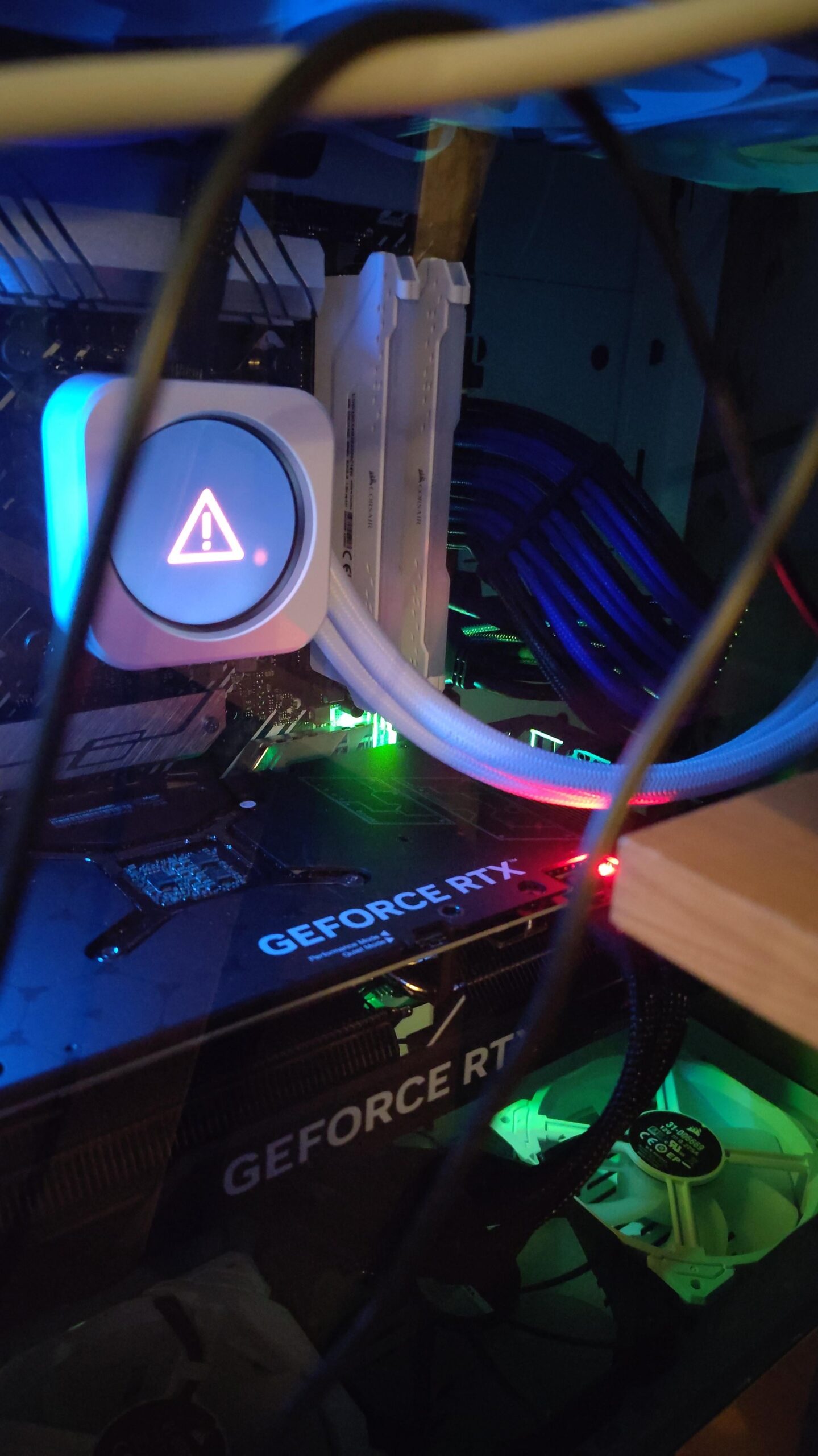
No fans come on. No image comes to the monitor. The PC is fairly new, my son maybe has played 15 hours or so in it. Any ideas of why it may not be starting would be helpful. I'm disabled, the thing is incredibly heavy and it's upstairs. I'll lug it the store that built it for me if I have to but if y'all could help, great. Store is 70 miles away. I live in the sticks.
2 Comments
Hello Lachrimophage, and thank you for your submission to Gaming PC! If you are new please check out our rules over at the wiki [here](https://www.reddit.com/r/gamingpc/wiki/rules)!
We have recently added the useful feature of Title Flair! You can set this manually by clicking Flair under your post once you have submitted your post, but if you missed it in the rules there is a much better way that will automatically flair your post!
To do this simply add what your post is about in brackets before your title. For example for a Build Log you can type [Build Log] before your post so that it looks like this; [Build Log]My new awesome build!, and the bot will automatically set your flair to Build Log! This works for Build Log, Build Showcase, News, Hardware News, Hardware Release, Discussion, and Miscellaneous!
Also remember that this is a place for discussing and sharing our love of Gaming Computers! This is NOT the place for help building or determining what parts you should buy, that is better suited for /r/buildapc. Troubleshooting questions should be directed to /r/techsupport. Thank you again!
*I am a bot, and this action was performed automatically. Please [contact the moderators of this subreddit](/message/compose/?to=/r/gamingpc) if you have any questions or concerns.*
Straight from ChatGPT but I hope this atleast helps:
What I See in the Image
• The most notable feature is the CPU cooler (an AIO/waterblock) displaying a triangle warning symbol with an exclamation point—this is almost always an error or critical warning from the cooler’s onboard diagnostics.
• The GPU (GeForce RTX series) appears powered (LEDs are on), but that doesn’t mean the system is successfully posting.
• No visible fans are spinning (though it’s hard to confirm from a still image).
• There are RGB lights on, which means the motherboard is getting at least standby power.
⸻
Interpretation of Symptoms
• No fans spinning: Not normal for a new build; fans (case, CPU, GPU) should start up even if the system doesn’t POST.
• No video output: System isn’t getting past POST (Power-On Self Test), or not even reaching it.
• Cooler warning: Indicates a serious problem—potentially with power, pump connection, CPU, or cooler itself.
⸻
Likely Causes (Ranked)
1. AIO/CPU Cooler Not Connected or Failed
• The warning on the cooler suggests a problem—either it’s not receiving power, or the pump is dead.
• If the pump isn’t running, some motherboards refuse to boot to protect the CPU.
2. Motherboard Power or CPU Power Issues
• Double-check the 24-pin ATX and 8-pin CPU power connectors are fully seated.
• A loose CPU power cable can cause these exact symptoms (no POST, no fans).
3. Faulty Power Supply (PSU)
• The RGB lights don’t rule out a PSU problem. Some rails may have failed.
• Try the “paperclip test” or swap in a known-good PSU if available.
4. RAM/CPU Issues
• Badly seated or faulty RAM/CPU can prevent POST. Reseat RAM (try one stick at a time) and, if possible, reseat the CPU (only if comfortable).
5. Motherboard Failure
• It’s possible the board itself is faulty, but check all other components first.
6. Short Circuit (Standoff Issue or Stray Screw)
• Double-check for a misplaced motherboard standoff or stray screw behind the motherboard causing a short.
⸻
Suggested Troubleshooting Steps
1. Power Down & Unplug
• Safety first. Unplug the PC.
2. Check Power Connections
• Reseat both the 24-pin and 8-pin CPU power connectors.
• Make sure the AIO pump is connected to the correct header (CPU_FAN or PUMP_FAN).
3. AIO Connection
• Some AIOs must be connected to a SATA power plug, not just the motherboard header. Double-check all connections.
4. Remove/Reseat RAM
• Try booting with just one RAM stick in the recommended slot.
5. Test PSU
• If you have access to another PSU, try swapping it.
6. Remove GPU
• Boot without the GPU (use integrated graphics if the CPU/mobo support it) to see if it POSTs.
7. Breadboard Test
• Take the system out of the case and assemble it on a non-conductive surface to rule out shorts.
8. Check Error LEDs/Beep Codes
• If the motherboard has debug LEDs, note which ones are lit. If it has a speaker, listen for beep codes.