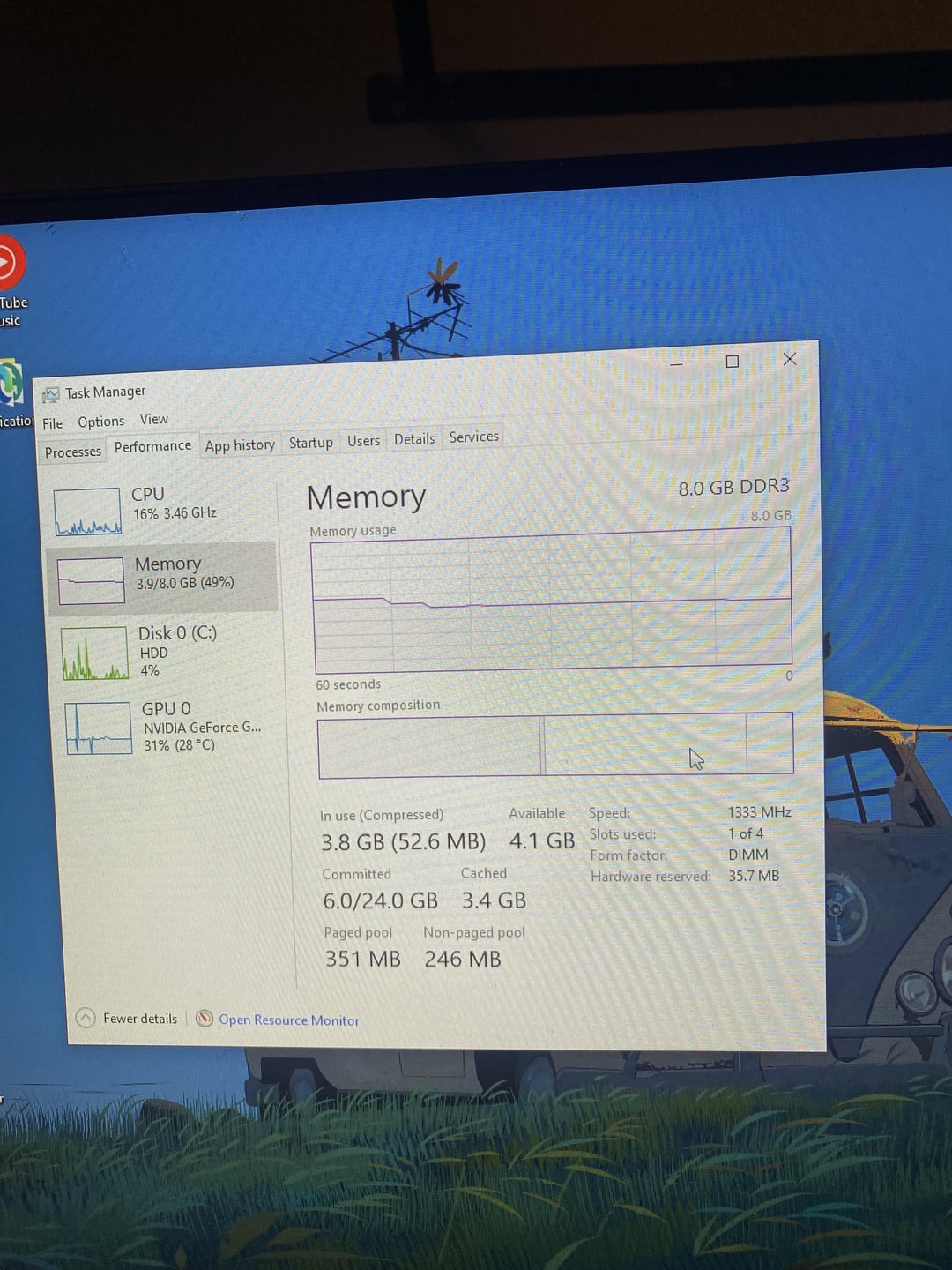
Says I only have 8GB of ram and I have no clue how to fix this. I’ve tried so many tutorials and tips but can’t figure it out. If anyone knows how to fix this please let me know. Also I’m trying to upgrade from 8GB to 16GB 🙂

Says I only have 8GB of ram and I have no clue how to fix this. I’ve tried so many tutorials and tips but can’t figure it out. If anyone knows how to fix this please let me know. Also I’m trying to upgrade from 8GB to 16GB 🙂
40 Comments
Ram is DDR3
Do you have two sticks of ram? Because it’s only seeing one stick. Maybe it needs reseated.
Check what CPU-Z shows for each slot. Looks like one isn’t detected.
Check online with your motherboard manufacturer that you have both sticks in the correct slot, not next to each other
After that remove both and clean with compressed air and try again
I have had bad experiences with multiple ddr3 modules dying so it may just be dead
Seeing as you are newish to PC building I wanted to ask if you were sure those were 2 8GB ram sticks? Check again to make sure they are 2 8GB sticks.
You might want to clear that dust or else you‘re gonna loose another part of your pc, besides a ram stick.
Is it me or does it say 1 out of 4, but theres only 2 ram slots on the MB?
Try to change slots.
Are they the same? Check to make sure they have the same clock speeds. Maybe one is not seated correctly? There are more qualified people in this comment section than me though so I’m just spitballing.
What you’ll want to do is removal 1 stick and boot the computer. (check you manual for the motherboard there is a prefered slot for a single stick)
if it boots, close the computer and replace the working stick with the one you removed.
if it boots, close the computer and put the 2th stick in the slot (effectively inverting them) and start the computer.
All of these step should work if all the component works. If at any point your computer doesn’t boot you can assume something isn’t working as it should.
for example, if both stick alone can boot your computer but when they are both in the system one isn’t showing it may show a problem with the motherboard.
It’s only detecting 1 stick, either 1 of your sticks is dead or you need to make sure the other is seated properly, open the machine and push the ram in
Reseat the ram, still an issue try different slots to see if it’s the slot. Still an issue try reseating cpu.
Please clean that cooler…and your fans too
One thing I’ve seen cause this a couple of times is when seating the ram, you manually close the catches on the side, if they dont close by themselves by pushing the ram in, there’s a good chance it’s not seated properly. So when you install the ram, keep pushing till the clips snap into place and dont manually close them.
I had the same problem when I built my girlfriends PC the one ram stick was just slightly not pushed in
I had to take it in and out a few times
Not sure if someone already suggested this, but go into the BIOS. The BIOS key is different for each motherboard, but usually it’s Esc, Delete, or one of the F keys.
Check in the BIOS if all 16GB is being detected or if it’s just the 8. If it only detects 8, that indicates that there might be something wrong with the RAM stick itself, or the slot it goes into. Don’t be afraid to mix and match where they go to test each stick out.
From your screenshot it says only 1 of 4 slots are in use. Install 1 RAM stick at a time and see if both work. If they do you can try 1 stick at a time in each slot to check if your RAM slot is indeed faulty. It’s DDR3 so they’re older sticks it’s possible 1 is faulty.
Love this sub being kids first tech support
One stick died happened to me before
Do you have the ram in the correct place they are supposed to be in? For example slot1 and slot 3, not slot1 and slot2? Also are they the same brand or different manufacturers?
It looks like 1 stick or slot is dead, try booting with 1 stick and try both of them, in both of the slots. Like this you will find out if you have a faulty slot or a faulty stick cheers.
If any of the cpu pins are damaged on the motherboard. Specifically ones that communicate with the RAM. Then that would also be an issue.
Just download the remaining 8 gb
Does it say 16gb in the bios? Did you perhaps install a 32bit version of windows? That has a 8gb max thing right?
Your ram might not be fully compatible with your motherboard. I had that happen to me a couple of years ago.
What version of windows are you running?
Oh my god please get some canned air and clean your PC immediately
This happened on me first build, and it was because of bent CPU pins. No issues after swapping my CPU. You have an Intel, though, so maybe new mobo if that’s the case
Make sure they are properly seated.
Your motherboard might only support 8 gigs, or the slot could be caked with dust like the rest of your PC… clean it out and see if it helps. Make sure to fully shut down your PC first, turn it off then unplug and press the power button to flush it completely.
Some newer motherboards need you to put the ram sticks separated by one slot. This is because both sticks must be in the same channel, and if your motherboard has room for 4 sticks, the channels are separated by a slot
Could be your ram is not seated properly or if it is sested properly its dead or another one could be your cpu is not making contact properly for the other channels of ram to be detected (very rare but i had this exact problem back on my 5820k had to mess around with cooler mount and keep rebooting until it detected all ram)
Or worse case your cpu socket is bent pins
1. clean the sockets or move both one step to one side
2. check if you use windows 32bit or 64bit
3. start the system with one ram slot at once to at.least make sure the slots are not broken
4. check the different slots with one ram
From this entire comment section I have not seen you reply to anyone saying you isolated the RAM. This is the only way you will know for sure if one of your RAM sticks is faulty. As others have said, install one RAM stick at a time. If one stick works, take note of that, turn off the pc, remove it, and then try the other stick in its place. If it works, your RAM isn’t the problem.
Others have said clean the pc and RAM slots, so do that. If both sticks are working individually from the above troubleshooting steps, install both again. If you still only see 8GB, it’s starting to look like the dual channel slot is faulty.
I checked your mobo manufacturer website and here’s what they say about the RAM:
• Supports two unbuffered DIMM of 1.5 Volt DDR3 1066/1333/1600* DRAM, 16GB Max
– Supports Dual channel mode
*DDR3-1600 MHz is only supported with Intel® Ivy Bridge processors
Your processor does not support DDR3-1600MHz, but this will just downclock the speed to the slowest stick.
Reply back to someone once you validate both sticks work individually.
Had a similar issue a while back, try plugging and unplugging both sticks of ram, if it doesn’t fix it then one of them is dead ( plug one stick at the time and figure out which one is busted)
Enough people have replied to tell you how to fix this
I am here to tell you to blow out your cooler
Dusty PC and looks like new RAM sticks. Maybe a dusty port?
Re-seat ram?
Looking at how dusty it is, are you sure the RAM sticks are making good contact with the motherboard?!
First of all clean your pc, the cpu fan can’t work properly with so much dirt on it.
Then take out both of the ram sticks place only one ran every time to see if there is a problem of your motherboard or on your sticks.
Or maybe one of the sticks doesn’t installed properly.