
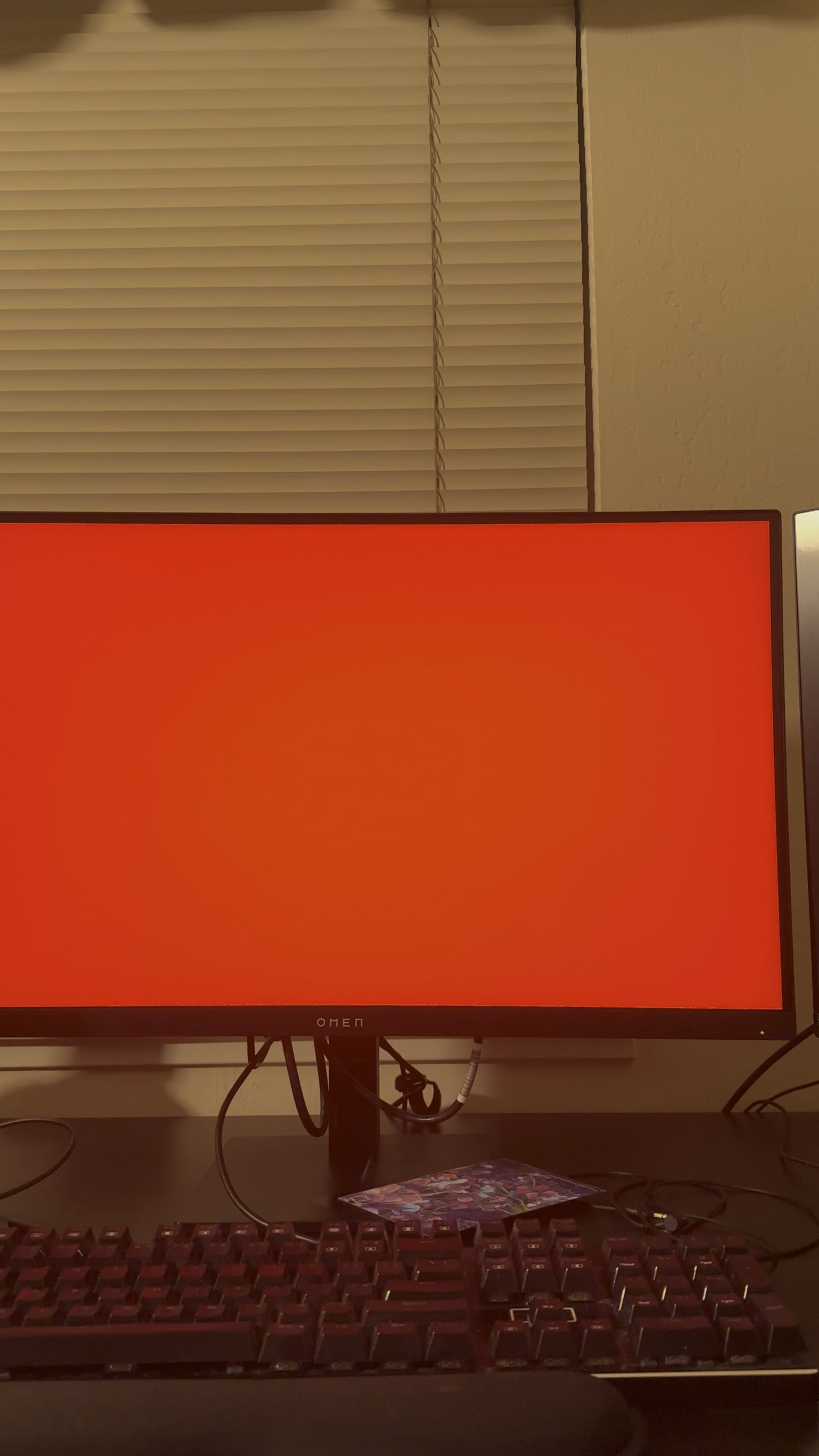
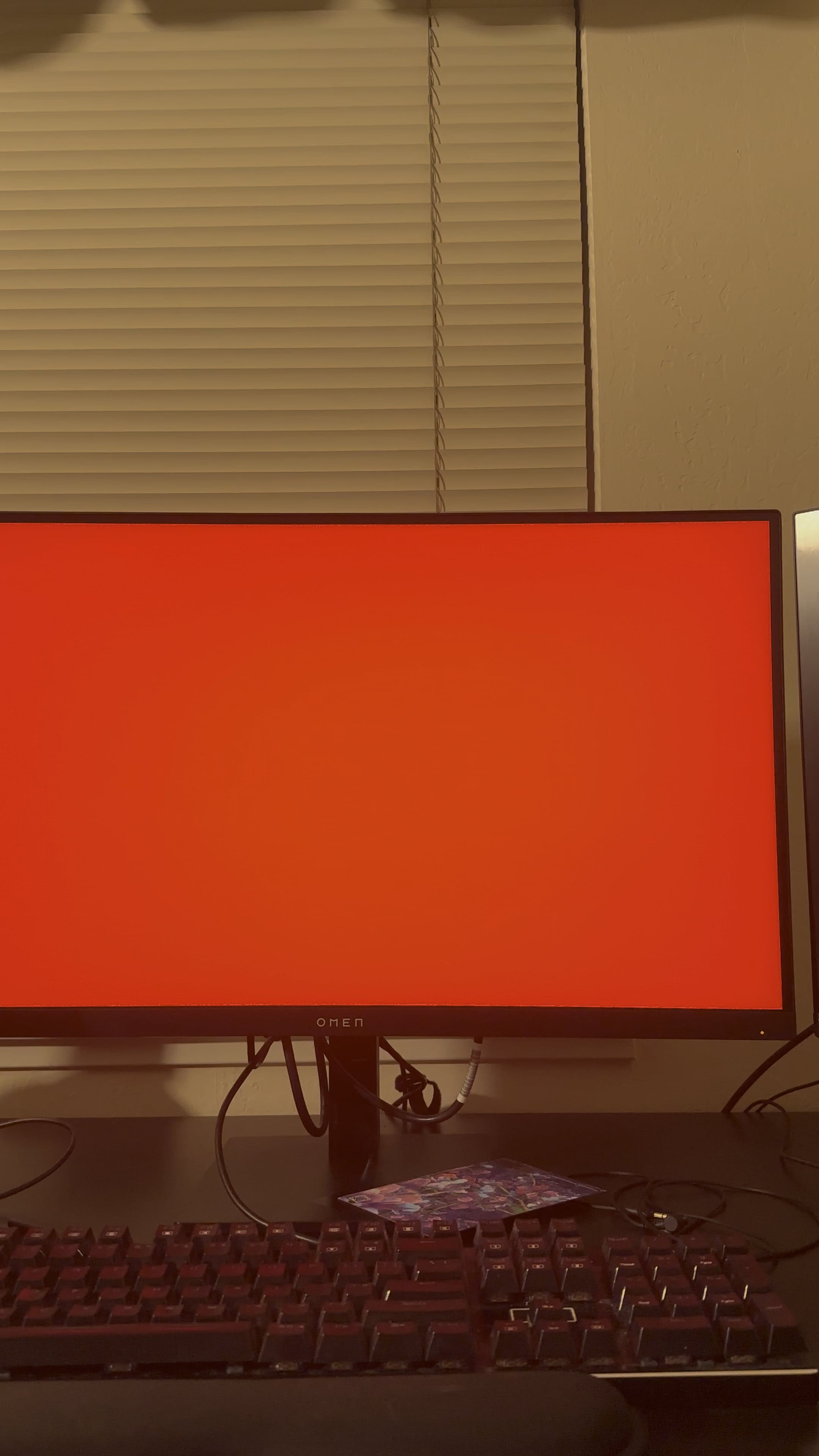
I just bought the Omen 27qs monitor and this is the third day I’ve used it. I love it for the most part, but one issue I have is that when i turn my PC off, it starts flashing colors. Anyone know how to fix this? My only solution right now is unplugging the monitor but thats not something i want to do every time i turn my pc off.
Thanks in advance
24 Comments
You could check if something like Test mode or Shop mode is on in settings.
Definitive fix : 700kJ of kinetic energy applied at the middle of the sreen
Check in the osd of the monitor if there is something called a sleep mode or anything to do with standby. Sometimes it just has to be turned on, although you still might have to press the power button to wake the monitor when you want to use your computer but that should still hopefully be better than unplugging the whole thing.
I have a dvi to hdmi extension/adapter for my pc, that connects my gpu to a dvi monitor from 2008. The issue is, that connector has some intelligence inside of it, and that intelligence does not perceive the power off of the gpu, it doesn’t detect power. So what happens when it looses signal? It color cycles and it can’t be shut off, because it thinks it’s mid-input. You lock up the board in the connector or the monitor and both freeze up with no input. The trick is to power off the monitor before the system so it gets a power off signal, and shuts off. I know thats sounds dumb, but yea.
I have this exact monitor. I have not ever seen this before. My monitor when plugged in with show the logo. Then turn off to save power. Upon powering my pc on it will start the monitor. When powering off it will just power down. I’m sorry man no help there.
This happened with my dell monitor. Apparently it’s some sort of factory service mode that you as the end user aren’t supposed to be able to access period. Resetting the monitor to factory settings fixed it temporarily but if you want a lasting fix, go through your warranty and send it in. I’ve spent probably 2 years at this point dealing with it and that seems to be the only solution across the board for this burn in pattern thing. And if you’re out of warranty, well you kinda just have to buy a new monitor unfortunately 🙁
It’s just adding more RGB to your setup. Leave it be.
Check cable connection to PC, happened to me when cable wasn’t firmly installed.
This might be a bad Omen 😂
Ctrl windows shift b (resets graphics driver)
Its fixing stuck pixels.
Pretty colours help locate dead or non conforming pixels. It’s normal, except if it’s not lol
Hate to be that guy but have you turned the monitor itself off and on again? My monitor does this only after the first time it’s plugged in, and then doesn’t once I power down and back on.
Thanks for all the replies. Ill get to trying them tomorrow night since im away from home for the weekend.
To try:
OSD for test mode/shop mode
Factory reset
Ctrl shift windows b
Check cable connection
If all else fails i can go nuclear and just exchange with Best Buy and see if a new monitor does the same thing.
I think they forgot to remove the test firmware from the production. Could also be a demo mode.
Moon Easter egg
If that’s an hp monitor in the settings it’s hidden but the x27q at least had it on the last tab otherwise the entire night would display no input detected
have the same monitor. from the looks of it, it looks like it’s flashing diagnostic colors found under management under the osd. try factory resetting the monitor using the option under management, also don’t use the usb-b cable that came with the monitor or the displayport cable that came with it as well, as i couldn’t get 1440p 240hz with it.
That looks like a monitor post
Replace your cable with certified display cables. This is happening because the display cables you are using were not made to standard and pin 20 is carrying power from your monitor to your GPU. Certified display cables do not carry power over pin 20.
Looks like it’s doing LCD-Conditioning. This fixes stuck pixels. It probably does it after it has been used to “freshen up” the LCD for the next use. I’m pretty sure you could disable it somewhere in the OSD
From my memory of ancient technology the power button should turn it off, not sure though.
Skynet!
Willing to bet this is OLED and this is a default mode to prevent burn in from regular use. Other than the bright colors being annoying at night if not in use, I think it’s a neat feature that prolongs life of the monitor.