
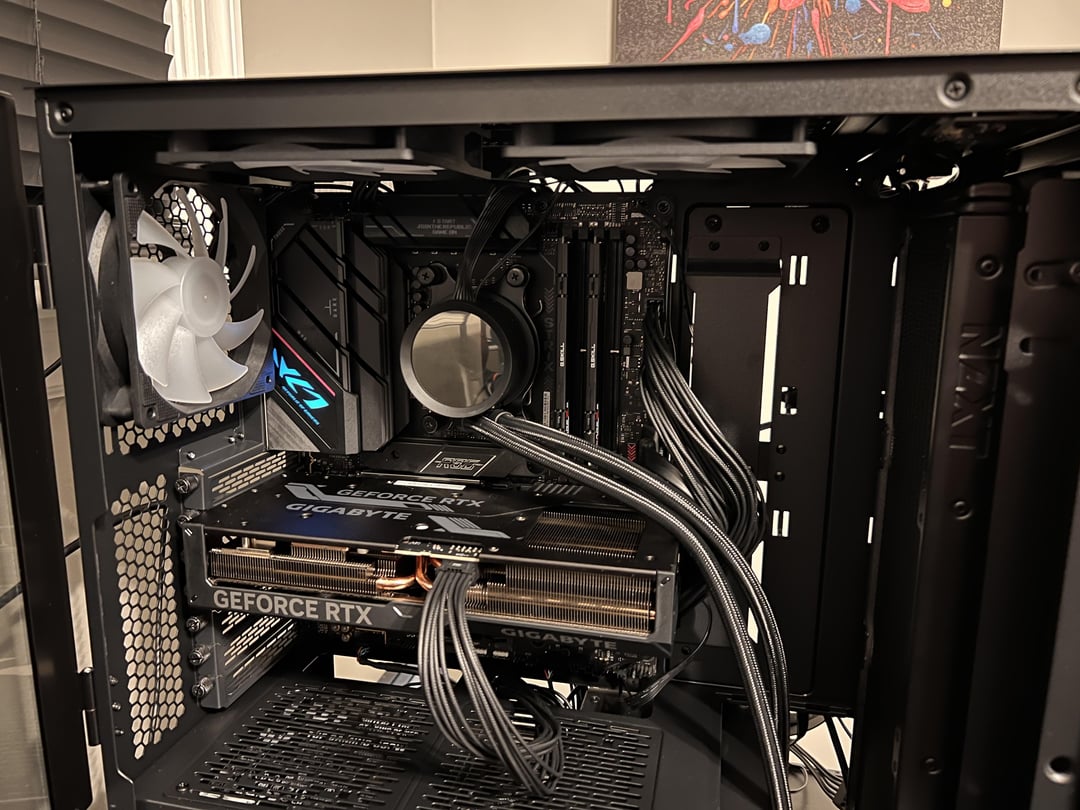
So I just built my friend a PC with the parts listed (last pic) and the motherboard I/O lights up when I turn on the PSU and the CPU Cooler starts to show NZXT but then stops when it hits the letter Z. There is power to the front panel because the USB slots work but it won’t turn on. The fans don’t turn on either when I hit the power button. I checked all my connections and everything seems to be fully plugged in. Any help or insight would be greatly appreciated. I’ll post some pictures if that helps too. I switched the RAM to A2 and B2 already after these pics were taken. Also, no LEDs show up on the motherboard when I attempt to turn it on either.
50 Comments
RAM should be in 2/4 not 1/3
Ram in wrong 2 slots. Just put them back where they belong.
(Edit: found text under picture)
Sure the pc case pins have to sit like that on the motherboard? By my they are all close to gether not 2 ripped out of each other.
As others have mentioned, your ram is in the wrong spots. Also, flip the radiator orientation.
If there is literally nothing happening when the power button is pressed, check the small cables that lead to the power button (and power led, reset, HDD led). To my knowledge you can take any wire and short the pins manually to start the PC.
That would at least rule out that simply the button itself is faulty.
Also double check that these small cables are plugged in the correct place. USB pins look very similar. Follow the mobo manual closely.
Edit: looks like they are correctly connected from your pics, so check with a random exposed wire if the problem is simply the button. Just tap both contacts, PC should start as with the button.
Check the front panel cables. I think there’s definitely something wrong there.
Have you tried with the monitor disconnected? Sounds random but had a PC that failed to POST while connected to a 4k display.
https://preview.redd.it/x4z3g1ytwv1c1.jpeg?width=4032&format=pjpg&auto=webp&s=fd28b975d8170a1caf3f169486715ff9c5cb2750
Here’s a closer look at the front panel pin connections. And according to the manual that’s where they go. I even checked to make sure the positive (indicated by a black arrow on the cable) is where it needs to be
I’d try with the graphics card removed from the pc if this has integrated graphics, or putting in a known working one.
One time I had this same issue, I had a short happening because the backplate was touching the motherboard.
I changed parts of my pc recently and it didn’t work like yours. I unplugged everything and plugged again, but slower and more firmly to make sure everything was correctly connected. It worked!
Then I had to update the BIOS, but that’s another story.
Try it it, reconnect everything again.
Seems you are missing another ATX cable for the CPU power? It’s a 4pin then a 6pin?
Did the MOBO come with the little beep speaker that you can plug in? If so try plugging that in and see if it gives you an error beep sequence when you try booting.
Where is the 8 pin for the cpu I can’t see it
Find a PWR BTN pins on your motherboard and short them with a screwdriver. You’ll know if that’s just power button from the case not working/not connected properly or you have something else going on. These wires might have arrived broken installed in case to begin with, I had that happen before. Is the PSU switch at the back turned on? Did any PSU cables give you a hard time plugging them in?
Use front case adapter included in the box. It might the header is not standard
Do you have anything plugged into the cpu fan header? If not, that could cause what you’re going through, learned that one personally
Try removing one stick of RAM and powering it on.
edit for clarity : remove only the one in slot 2
As stupid as this sounds, that’s what worked for a build I did for a friend of mine 2 years ago. Not sure why it’s a thing, but it took me 4 hours and some lost sleep to figure it out.
Sorry I wasn’t super clear, but the one that’s completely on the right
I have no idea how to help, but this is getting exciting!
Idk if this is your problem, but I see your aio pump plugged in,and opt cpu fan plugged in, but nothing plugged into the cpu fan on the board (right below the aio pump). Some mobos are particular about this and need something plugged in there to operate.
Also, you did use the mobo cables that came with the psu right? Something else for trouble shooting you can do is remove your gpu and see if you have the same results.
Let us know if you solve it!
Am I the only one thinking there was a hole where the CPU should be?
I probably am.
This one might sound dumb, but remove all of the power supply cables and try with only the original cables that came with the PSU. Make absolutely sure every cable is plugged in fully.
Have you double checked that you have spacers everywhere in your case that match up with your motherboard? There might be a spacer missing and you’re screwing your board directly into the chassis, causing a short – or there might be a spacer already mounted in your chassis that doesn’t match your motherboard size – so it’s shorting against it as well.
Try shorting the power button with a screwdriver, you could have plugged it wrong
First time i built my tower i forgot the spacers for the mobo onto the case it wouldn’t turn on until i realized this mistake and reinstalled thr mobo with the spacers.
Cheers to everyone trying to help, and to the OP for patiently trying the suggestions. I look forward to this being resolved!
Stupid question maybe, but have you accounted for increased memory training times on Zen4? It may take a couple of minutes before anything happens on screen.
This happened to me last year and I ended up giving up and taking it to a shop to sort it for me. They fixed it within an hour. In short, there was a SATA cable I hadn’t plugged in somewhere.
Make sure the on/off switch is toggled on the power supply. I’ve heard people forget about this sometimes. (It’s me I’m people)
Looks like you have the power switch plugged in horizontal but should be vertical based on the manual
Actually if you keep trying everything and nothing is changing I’d say it’s the power supply did it come with a test jumper
Did you try jumping the pins? I saw the comment but no update reply, everyone else is just telling you to barebones and see if it post. Also was this build checked out with like micro centers part list or PC partchecker?
+ that random mf complaining about the radiator position
What kind of beep code do you get when trying to start the PC?
Did you bridge the psu to test it?
Unsure what’s going on but I know with my Asus b550 you’re supposed to use the opposite ram slots if only using 2 cards
https://preview.redd.it/irrv9xd41x1c1.png?width=695&format=pjpg&auto=webp&s=dad487ffa9babda0582e5e7a6311e8def0185ea1
Some 650 boards have to be bios flashed to support am5. On their release they were am4 ready, and can work with am5, but not always out of the box. I was shopping for mobo and cpu recently. Does that mobo come with the ability to flash without getting into the BIOS? I am not assuming that’s the problem, I didn’t look up up mobo to see what is capable of out of the box, if there is a way, I’d flash the BIOS to the newest version and try again.
I had this happen once, and there were bent pins on the cpu.
Didn’t look through the comments fully to see if you had already removed and checked the cpu. Worth a shot
Hey, so does the computer shut down after a second of being on? Or does it stay on and spin fans just not post? Assuming ever part is functioning and installed correctly, I’d try to get to bios if that is possible in this situation.
Many things could cause it to not post correctly. 1. Obvious issue, gpu, did the gpu come with its own pcie cable, if so, use that one instead of the PSU one. 2. Did you crank down on the aio cooler, too much surface pressure can actually cause the cpu to not work properly thus not posting. 3. I see you said you’ve reseated the ram so I don’t believe that is the culprit. Check the cpu power cable, I’ve mistakenly used a pcie cable instead of the cpu cable before and gave me this same issue.
If it’s shutting down after a second. Check all cables and connections. Try to boot with only 1 ram stick. Try to boot without the GPU. And if you really wanted to test the PSU, look up a video explaining how to jump a PSU and if the fan spins, that’s ruled out.
have you tried with 1 stick of ram try each one itself surprising how often ram fails
remove everything external to the motherboard, ram gpu, ssd everything apart from cpu and see if it will stay running for longer, it won’t post without ram but it will atleast stay powered on
Maybe you have a piece of metal touching somewhere that you don’t realize, could be a motherboard issue, check for any deep scratches. also, this is a longshot, but try using one stick of ram.
Something similar happened to me before, turns out it was just bad cables that came with the power supply. I would try that before replacing anything like the cpu or motherboard.
I know you’ve had a lot of conversations on this, but let me throw in my 2 cents if it might be different…
It almost sounds to me like your PSU’s protection systems are activating and preventing the system from turning on.
I recommend that you pull everything attached to the motherboard out of the case and set it up on a safe surface (The mobo box will work in a pinch)
In order, try these steps and see what happens after each:
1. Disconnect the PSU from everything but the wall. Verify that the voltage selector switch on the PSU is set correctly (110/220) and try the jumper/short start of the PSU by itself. Good pictures here ([https://www.bit-tech.net/guides/modding/how-to-jump-a-psu/1/](https://www.bit-tech.net/guides/modding/how-to-jump-a-psu/1/)).
2. Remove everything from the mobo – CPU, RAM, SSDs, Fans. Do leave the CMOS battery
3. Connect the PSU to the mobo and try a power on by shorting the two front-panel header pins. See if the board has any reaction in the form of lights or anything. Note that most mobos have debug LEDs. If these don’t have any activity when attempting to test from this step on out, then it’s likely the mobo.
4. Remove the CPU from the socket and check it for any material on the backside that may disrupt contact. Also, verify the integrity of the socket pins. Install the CPU and short the power pin. You won’t need the heatsink on for this as it won’t make it through post.
5. Install the a single RAM module and test again. This time, you’ll want the CPU cooler on. If you have thermal paste, I’d recommend you actually don’t apply any to the cooler as you may end up removing it and all these tests are for basic posting and not for running. Once basic POST has been verified, you can go back and repaste the CPU.
6. Install SSDs and test the system one at a time.
7. Connect a single fan of your choice and power back on. Ideally, repeat until all fans are connected and verified. Highly unlikely fans would cause a short, but they have in the past….
8. Connect the GPU without its power cable. GPUs today will display a message during post cycle complaining about needing the power cable and prevent full system boot. Verify system power
9. Attempt with the GPU power cable plugged in.
​
If all fails, then it is likely the mobo and time for a return or an RMA depending on age/policies.
​
Good luck!
Can someone please comment what the problem was after it’s found?
I’m really curious to know what the Solution is.
Looks like two of the CPU power pins are not connected:
https://preview.redd.it/9je4tnv0cx1c1.png?width=886&format=png&auto=webp&s=214c7c8970d16379707a9423c7a9f56b959ec849
is the switch on the psu flipped on?
If you don’t have another way to test the PSU: Pull the PSU out, and plug it into your old build you had mentioned. You only need to worry about the mobo and CPU connectors (and potentially GPU). You don’t need to remove the old PSU, just plug the new one into the spots with the case open. Your old build should turn on. If it doesn’t then you probably have a bad PSU.
Easy fix the fan connectors are plugged into the wrong slot. ASUS boards will freak out if the AIO pump connector isn’t in the right slot and won’t boot find the cpu fan connector and see if it is occupied if not that is your issue
Plug your AIO into the CPU_FAN header to power it. Most motherboards won’t turn on without something plugged in to that header specifically. I had this same problem awhile back on a new build
Picture 2, you have AIO_PUMP and right below it is CPU_FAN for reference
i know this is a little late op. but what id do if you can. and it’ll be tedious… is:
take everything out of the motherboard. plug in only the 24pin motherboard cable. try to turn the system on. you should get indicator led’s on the motherboard stating no cpu, ram, or gpu.
if you do that’s a good sign. next install the cpu and connect the cpu power cable. if you are very brief about turning it on and off, you don’t ‘have’ to have the cooler on at this moment. what we want to see is if the cpu light turn off. cooler or not, if the cpu light turns off, we know the motherboard and the cpu are good now.
next instal ONE stick of ram. see if the memory light goes away. at this point the system should be able to post to bios as well. if it does, feel free to try adding the other stick of ram.
if all that goes well, then you add the gpu in to the system and wire it up too.
basically we are systematically adding in each piece of hardware to see where the fault is. if from the very get go you have issues with the motherboard while nothing is in it, then it’s clearly either your power supply or motherboard.
the only other thing i didn’t see mentioned, and it shouldn’t be this, it really shouldn’t. but try taking your cmos battery out for a few minutes and then putting it back in. sometimes things just need to get de-energized