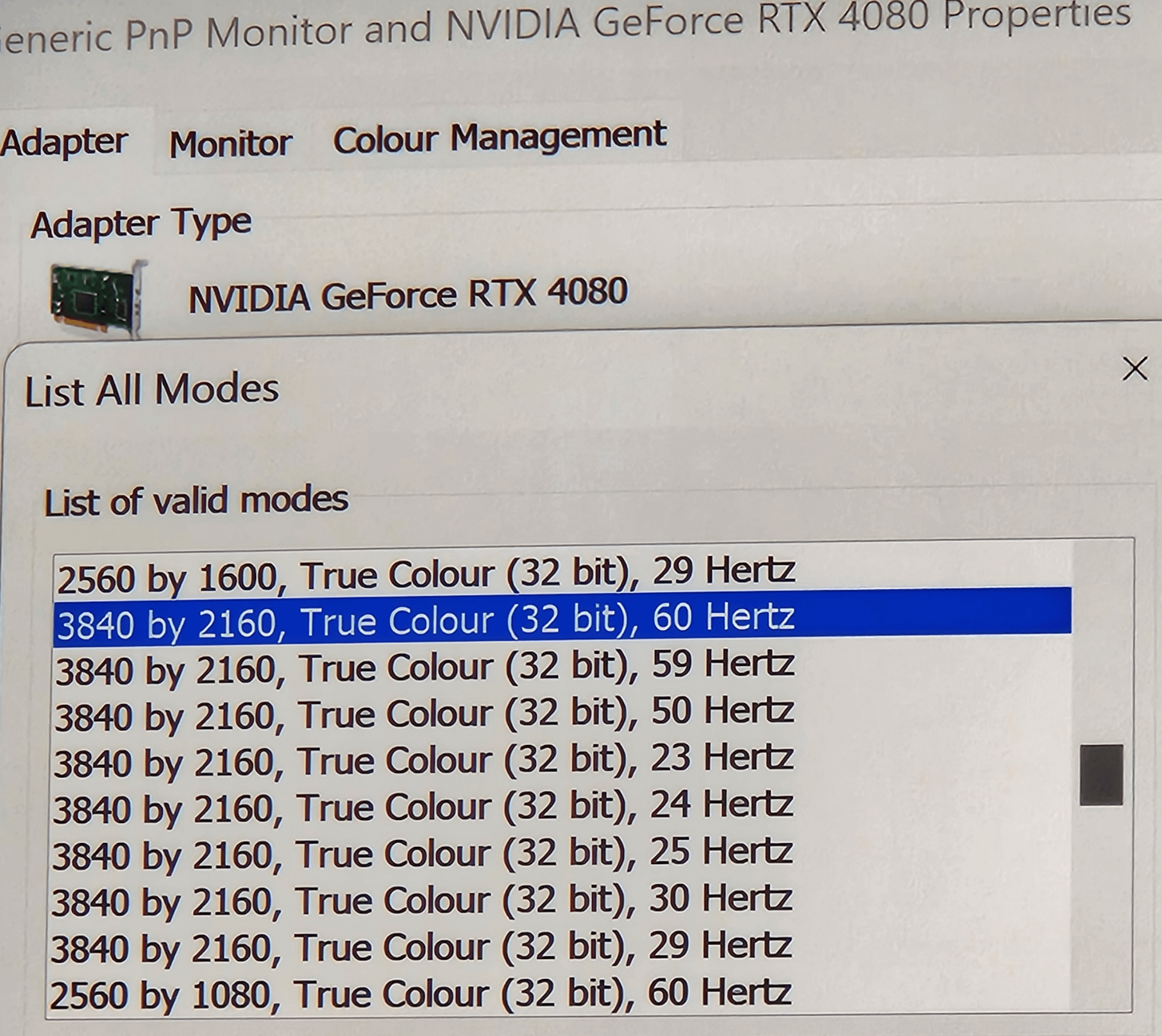
Got a HDMI2.1 cable so that’s not an issue and the Rtx 4080 supports it too so I’m really not sure why it’s suddenly stopped running at 120Hz. Any thoughts or insights are welcome and appreciated.

Got a HDMI2.1 cable so that’s not an issue and the Rtx 4080 supports it too so I’m really not sure why it’s suddenly stopped running at 120Hz. Any thoughts or insights are welcome and appreciated.
48 Comments
It’s showing generic plug n play monitor. I’d try to find the driver for it.
Does your display support 4k120 via HDMI? At what color depth?
This info is usually towards the back of the display manual, where it should break out resolution, refresh rate, etc per connection.
Also, HDMI 2.1 is a tricky thing. You have to check that the thing literally states it can do what you think it can. Everything that was HDMI 2.0 got its name changed to HDMI 2.1, no performance improvement required. If it doesn’t explicitly state 4k120 at 32-bit then consider it HDMI 2.0, which is 4k60.
Like the others said, try updating your drivers first, and then make sure your cable is good and capable.
I don’t think the Generic PnP Monitor thing is the issue, mine shows like that too.
But in actual Windows Settings it’s recognized.
I’d try a different/new cable. Or to start with try re-plugging the cable
https://preview.redd.it/ov8e9ei2vxzb1.png?width=588&format=png&auto=webp&s=c0d124b1b658fc5a56d21b5781a84ee2e54c96a3
plug the cable the other way around, if still doesn’t work see if you can get another cable to try.
Odds are your running something at hdmi 2.0. probably your cable or your monitor capping it out. You absolutely cannot push 4k 120hz if any part in the chain is using hdmi 2.0.
HDMI 2.1 is the only hdmi format that can support 4k at 120hz and both your display/card/cable need to be rated for 2.1 to hit those bandwidths
[https://www.avaccess.com/blogs/guides/hdmi-2-0-vs-2-1-difference/](https://www.avaccess.com/blogs/guides/hdmi-2-0-vs-2-1-difference/)
or use DP and get off that garbage hdmi lol
Edit: Apparently hdmi 2.0 was dropped and everything is labeled 2.1. So now you just gotta make sure your hardware/cable/monitor can actually push 4k 120hz @ 32 bit.
Or just switch to DP lol
Check your driver, update that one. If it is updated, try to change your cable.
Use DisplayPort. HDMI should be avoided. Update monitor firmware and drivers.
Does your monitor use display port? Maybe try a display port cable and see if theres a difference
I feel like I had this issue before but can’t remember what it was. Try disabling hdr in windows, or change 24bit colour
My friend recently had a lot of headaches with his 3080, a 4K120 TV and HDMI2.1 optical cable. It wouldn’t work, but it worked with his GF’s laptop that has a 3050 in it. With his PC the signal would just not be recognized and for some reason display drivers crashed. He didn’t figure it out still but HDMI is honestly extremely finicky at the high-end, and very similar to USB in terms of how absolutely DUMB some of the forum’s decisions on it are!
Are you *sure* you got an HDMI 2.1 cable? Amazon has an abundance of false certifications, both for the half-assed certification requirements and also because of sellers.
^(Ask me about my hatred of the HDMI certification.)
Use DP cable insted of hdmi
It may sound stupid, but did you check the entire list? The 120 hz modes may be in an unexpected part of the list, happened to me. Try scrolling further down.
Go enable it in the window settings instead of nvidia control panel. My pc does this all the time with my LG C9 for some reason. Just type “resolution” into the search bar and the setting will come up. After change the resolution you’ll see it magically re-appear in nvidia settings.
Is your display a TV or a monitor? If it’s a TV makes sure it’s actually plugged into an HDMI 2.1 port (usually labeled 4K 120Hz). Not all of the hdmi ports on a tv will support this.
If it’s a monitor, make sure the monitor actually supports 4K 120Hz over hdmi. Many monitors require display port, not HDMI, to reach that spec.
If you’re good on those fronts, it’s probably the cable. Lots of cables claim to be HDMI 2.1 with 4K/120 or 8K/60 support, but they are bullshit. If you’re using a longer cable (more than 4 or 5 feet) it is especially hard to transmit so much data such a long distance. Longer cables require a lot of shield to prevent EMI from causing data loss during transfer. I have a 12 foot DP cable and the shielding makes the cable extremely thick (about as thick as a sharpie). If you’re cable is longer and not super thick, it’s a sign the cable can’t actually do what it claims. high bandwidth cables like this are typically more expensive too, so if the cable was cheap it probably sucks.
Hdmi, use DisplayPort for full potencial. And try to download drivers for your monitor, it show like generic(Default)
Turn off HDR
Did you buy a TV with an advertised ‘motion rate’ of 120, rather than a ‘refresh rate’ of 120?
Because I did that, thinking I got a 120hz monitor, and its actually just. a fucking. 60hz display.
‘motion rate’ should be considered false advertising, I’m still mad about it. If that’s not the case for you, then I hope you find your solution.
Cable
Is your monitor set to 60hz?
Stop using generic display adapter drivers?
[removed]
Does your monitor have 2 HDMI ports, they could have different supported speeds, so if you have recently unplugged your cable you could have put it into the wrong one?
Why is 2560×1600 at 29 Hz even a valid option?
isn’t 32 bit color the problem or am I missing something?
afaik 120hz hdr and 10bit is the limit for hdmi 2.1.
If you have an oled tv, true black or whatever the hdmi standard also takes bandwidth and limits me to 60hz – and doesn’t add much for gaming (unnoticable from my 1 minute test)
“generic pnp monitor”
Find monitor drivers for whatever model of monitor you’re using
I have a secondary 1080p 75hz monitor and used an HDMI cable as my longest DP cable was roughly a foot to short. The maximum refresh rate in windows was constantly changing between 75 and 60hz, sometimes after weeks of use at 75. I eventually ended up getting a long enough DP cable, never had any issues since. HDMI can be a pita sometimes.
An edit here cause I can’t on the post:
– This issue is recent, I’ve been playing at 4k 120Hz for most of this year. I utilise HDR and again I’ve always had this on so, can’t be a factor here.
– My display is a QN90B TV which has 4x HMDI2.1 ports, no DP for me.
– Photo shows slightly, my Gpu is an RTX4080 which also supports up to these specs.
– Nivida Control Panel mirrors Windows settings, showing no higher options than 60.
– Turning down the resolution to 1440p and 1080p doesn’t have any effect with regards to options available.
– When turning the ‘Game Mode’ OFF it is able to run at 120 with considerably more options anywhere up to this.
– I checked the certification of the cable when I bought it in an electronics store. The brand is Sandstrom.
I’ve had to come into work so will try cable in&out and searching specifically for the display driver, otherwise ‘Driver Easy’ shows all drivers are up to date.
Did your monitor not come with a display port cable?
It’s going to sound stupid simple, but I ran into something similar when I upgraded 2 machines to win 11. Try disconnecting and reconnecting your hdmi cable.
How long is your hdmi cable? I had a 3 metre one that made my display black out every 30 seconds, changed it for a shorter one and it fixed the issue…
Make sure your useing display port cable and if that not the issue then try adding a custom resolution and see if it will display
maybe your display is not in gaming mode or something
I had this happen to me but when using an adapter display port to HDMI. For years I was unable to get anything above 60hz at fhd. Now I have used the Nvidia option to create a personalized resolution and forced the 75hz and it is stable and working
New drivers. Use DDU to delete everything from the old drivers, download the new, updated ones and install. Problem solved.
I had the same issue, and it was my monitor. I had to enable 144hz first for… whatever reason. So try looking around in your monitor settings.
I had a selection of up to 60hz on my 240hz monitor as well. What fixed it for me was to change it in the monitor settings (of the monitor itself, not on your pc) to 240hz, then i could select up to 240hz in windows
You update to windows 11?
Try a good quality displayport cable
Maybe check if any of the software you have running caps the refresh rate to 60?
Use a Displayport cable.
Scroll down the list and you might find another section with 4K where 120hz will be an option to select. For me that was the case so it might be worth a try
Everyone suggesting everything but update your drivers lol
Do you use a secondary display?
I had an issue for whenever I plugged in my secondary display (gaming on a notebook), that due a combination of NVIDIA drivers and windows, it would lock the refresh rate to that of the display with the least of it. So my notebook, capable of driving 144hz, was only doing 60hz (that of the secondary display).
This happens some years ago, don’t know if it is still a thing tho.
Generic PNP monitor… Check if there is no available driver from your screen brand.
Clean install your graphics drivers
Keep scrolling down, there might be a separate set of settings.