
This is my Son’s older PC. It works great for what he needs it to.
I’m trying to set up dual extended monitors as a surprise for his 13th birthday, but am having trouble.
They are both new Samsung 27″ curved monitors and come with HDMI cables.
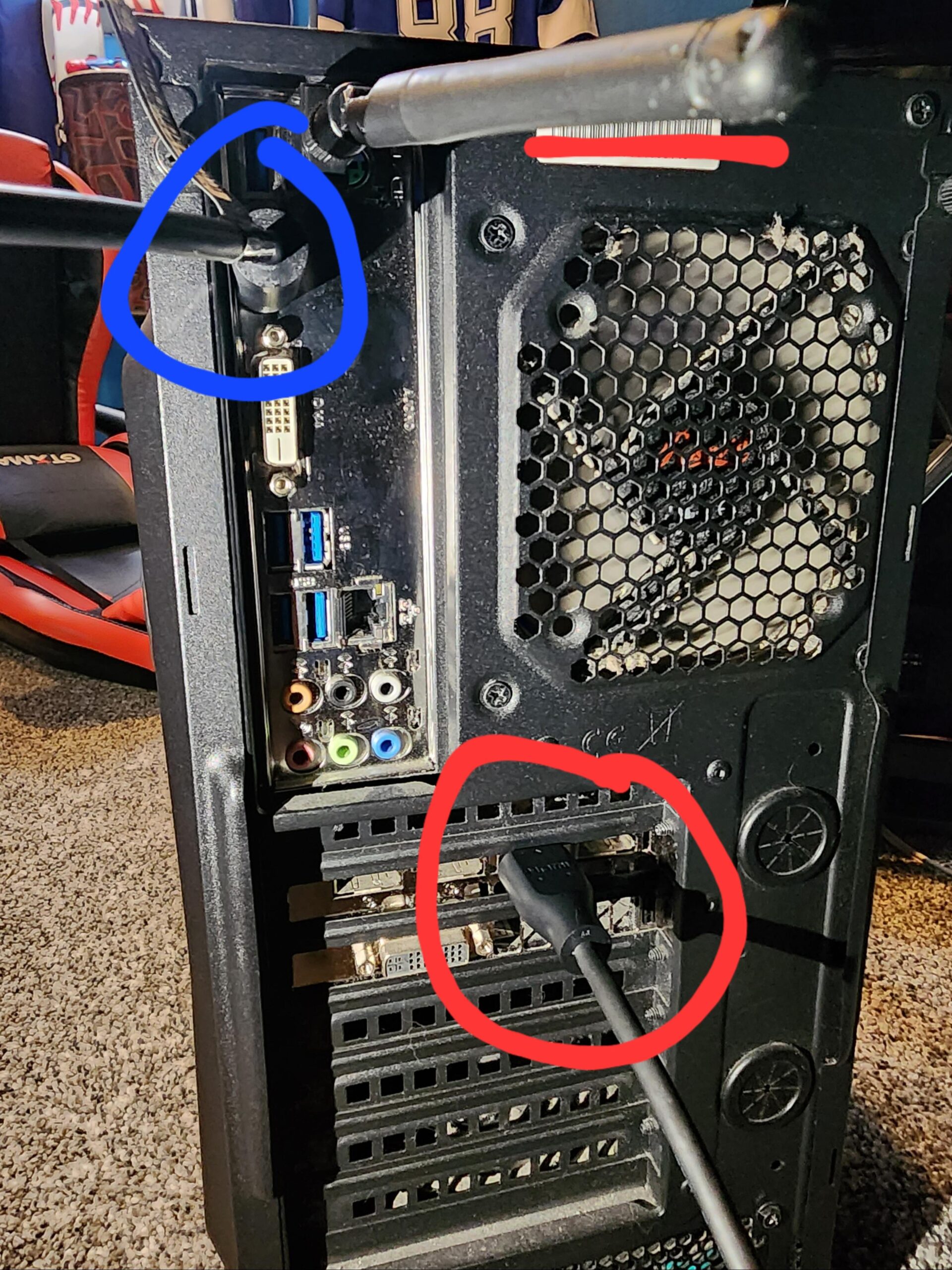
The Red circle is the one that works. This is also the only port that the PC display settings will detect.
The Blue circle is also an HDMI port, but no matter what I try for settings the PC will not detect the monitor from this port. I’ve changed them around and messed with the cords and the Red circle is the only one that will work.
I’ve come to the conclusion that I will need to run some sort of adapter from the monitor’s HDMI to the PC. I’m just looking for what options/adapters would work.
Please help me make his day special!
38 Comments
Those similarly small ports next to the functional HDMI are almost certainly Display Port, you should be able to get a Displayport to HDMI adapter for really cheap.
have all your displays coming out that same video card, and then in windows, go to settings -> system -> display, and then scroll down to Multiple Displays for settings
This ancient evil is in a dire need of cleaning.
For that one to work, the CPU has to have internal graphics, which seems not to be the case from what you described. What you can do is use any of the 3 displayports that are next to the red circle. Those all belong to the GPU.
If the Samsung 27″ has a DisplayPort output, then use a displayport cable. Do not use an adapter (ex: don’t use HDMI-to-Displayport) as it will limit the refresh rate to 60Hz.
Why don’t you connect the 2nd monitor via Displayport? Nearly all modern monitors have DP and HDMI Inputs. DP is the 2 connectors next to the working HDMI, the ports above (blue ring) are disabled when a GPU is present in the system (usually)
oh my god, ignore the ports, clean the case!
Yup he has a dedicated gpu so the motherboard port (blue circle) won’t work.
Down by the gpu (near red circle) I see display port and dvi so try getting either a dp (display port) to hdmi cable/adapter or a dvi to hdmi cable / adapter. The dp to hdmi cable would be preferable, but any of the four will work.
(Edit): scrap the second part. Just get a display port cable as the monitor more than likely has a port for it.
Should have it cleaned too it’ll make it work better and look better if u don’t know how check out a YouTube vid on how before trying anything out urself
Get 2 display port to display port cables and connect them to first 2 ports from left since your monitors have at least one DP port, problem solved 😉 If possible try not to mix DP and HDMI but it will be fine for 1080p if it is a must 😉 and that HDMI on top is from your iGPU (integrated in to CPU) since you have dedicated GPU you dont want to use that!
This is not how gpu work
Bother cblles must go to gpu
Blue circle cable should be plugged in next to the red one, you can find an adapter for HDMI -> Displayport at any electronics store or on Amazon.
Is that an old r9 card?
Why is the top comment not. “Blue circle is motherboard and that’s a no no. Just plug a second cord into anything around the red aka the GPU”.
A lot of good comments here, but to keep things simple and easy for you:
– Blue Circle video ports wont work, because you have red ones
– If you need HDMI specifically looks like you have two options: DisplayPort->HDMI adapter (better), and DVI->HDMI adapter.
Get a display port cable.
Plug both monitors in the GPU. Not the MOBO.
Not until you full clean that monster
You aren’t supposed to run a display off the motherboard when you have a video card installed. Both monitors should be connected to the GPU (bottom slots).
I know this is concluded. It would be really helpful to post a photo of the ports on the monitors so the speculation one what is there can die a peaceful death. 😀
You would also need to do it only from the video card not the video card and the cpu discrete graphics for better results
You have a DVI port on there (must be a oldish card) you can easily get a DVI-HDMI cable/adapter though it may not carry sound out of it but if you are using external speakers anyway thats not a problem.
DP to HDMI. they sell em on amazon. works a treat.
upgrade the gpu, you just got good monitors with a shit gdx card 👏🏻
So that you know in the future, the hdmi port in the blue circle is the one of the motherboard that would use the gpu within the processor if it has that capability. The motherboard gpu is only to be used in case there is no gpu available to use, which is basically a problem scenario
Just throwing this out there, you can use motherboard HDMI/Display port with your graphics card simultaneously but has to be enabled in BIOS, also dependant on whether or not your CPU is a “F” model. Looking at the board I doubt that’s the case. That being said going for a display port cable is the easier painless way but if you were ever in a pinch or couldn’t get a cable in enough time the BIOS solution works great.
Plug in both to the GPU, hit windows+P and set the behavior to extend
You’ll likely need display port to hdmi adapter. You can right click the desktop and get to advanced display settings. Ideally you would have cables match on both sides of the cable. Do the monitors have display port?
Before you do anything, please clean the computer it will effect the performance
Monitors are supposed to be connected to the GPU(s), the red circle is the port your GPU offers, the blue circle however is your Motherboard, that’s for the CPU, because if your CPU has integrated Graphics (iGPU).
So you know; the hdmi in blue is for on board graphics – ie integrated into the CPU. The ports in red are directly out of the graphics card.
If your system doesn’t have on board graphics the blue will not work.
As you have a GPU all your monitors should be connected to the ports in red.
You can’t do extended from 2 different sources. You can only duplicate
Why are such low effort posts allowed here I will never understand it. What a waste of time
I know this has been solved but, please read this through, there is some new info at the end.
You’re trying to connect to the integrated graphics which is generally disabled on systems with a dedicated GPU.
You need to connect to the ports next to the other hdmi connector, which would be Display port rather than HDMI. While you can buy an display port to HDMI adapter, most newer monitors feature display port so I would highly recommend you just get a display port to display port cable.
With that said your son’s graphics card, which is to say the components that actually generates the graphics for his games features an older connector called DVI. This isn’t featured on graphics cards anymore, and is sufficient to tell that it’s likely quite old.
—–
It most likely is going to lack the performance needed to play recent games on an extended dual monitor setup. It probably is already giving your son a hard time on a single monitor, adding another will only make things worse if he actually tries to use it as an extended display.
——-
Depending on how long you got before his B-day, I would highly recommend you look into exactly what graphics card he currently has and what you can replace it with. Maybe even returning the new monitor depending on your budget.
Air compress all the dust out of that PC or it won’t last as I assume it is older gen and will already struggle a little. May need some more CPU paste also.
if you have an Intel CPU with IGPU and a Mainboard that supports multi display then would it work but the GPU the PC already has should be sufficient in running 2 monitors and due to the ports shapes next to the HDMI port du i assume that they are DisplayPort which will work with a simple cable that has a DisplayPort and HDMI end.
Don’t think you can use both motherboard and video card graphics.
I know you’ve received a lot of messages on this, but I still want to share. That blue circled port connects to the pcs motherboard / the integrated cpu graphics unit. When an external graphics card is connected, I believe it’s off by default.
However, in the bios you should be able to set it to enable both gpus (integrated and dedicated gpu), and that will re-enable the integrated graphics and HDMI port. Just google how to enable dual gpu or activate integrated graphics for your motherboard / brand.
However, that monitor will then run on the other gpu which will probably not be as performant. As other comments have suggested, since you still have ports on the graphics card, you should probably hook it up via DisplayPort.
Reason why graphic cards are not populated with HDMI ports but the less common DisplayPort is that HDMI is not an open standard. For every HDMI port sold with a device the device maker has to pay a per unit license fee to HDMI LLC