
Ahead of the release of the new Royalty & Legacy Expansion Pack, we’re getting a big update to the Sims 4 base game. This will be available for PC/Mac and console on the 3rd of February.
Here we will break down how to prepare for the update, as well as what you can expect.
Table of Contents
What To Expect This February
Base Game Update: A big update for the base game is coming to get ready for the new pack release as well as the new login event coming at the beginning of the month.
Community‑Prioritised Fixes: The team will focus on issues with the highest votes, as these issues are likely to be affecting a large proportion of the players. If you want to vote on fixes you want to see prioritised you can do this on the EA forum.
Information for Mod Creators: If you are a mod or CC creator, you can find all of the Python notes for the latest patch here to help you see which of your mods are going to be affected by the new Sims 4 update.
What’s Coming In The Sims 4 Update?
As well as bug fixes and general updates to the game, we typically get a base-game update that aligns with a theme or feature of the new Expansion Pack – like the introduction of platforms when Snowy Escape was released or bunk beds with Dream Home Decorator.
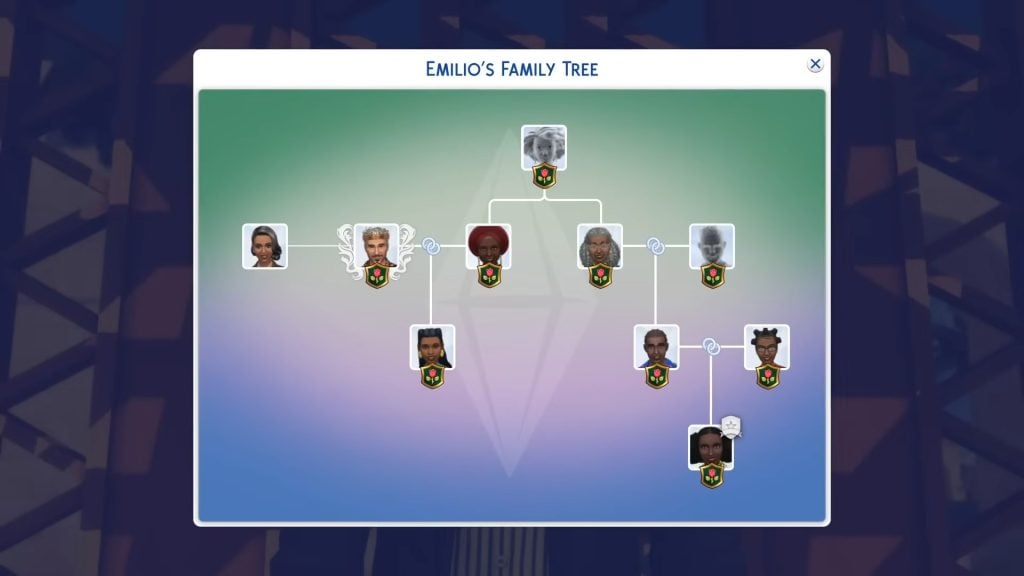
Based on February 2026 pre-patch notes and the announcement of the new pack, the major feature being added to the base game is an overhauled and expanded family tree system.
On February 3, we’re rolling out an exciting Base Game update that introduces expanded and improved functionality for family trees, genealogy, and relationship data. These updates enhance how Sims’ family connections are tracked and displayed, and we’re looking forward to sharing more details with you very soon.
Because this update makes changes to core game systems, our testing has shown that some mods – particularly those that extend or interpret family and relationship data – will be affected. This could appear as missing relatives, unexpected relationship changes, or family trees that don’t reflect what you expect. In rare cases, these issues could negatively impact your save.
Game Fixes
The latest Sims 4 Laundry List announced on social media and their website, we can see that the main repairs they are focusing on are ones with the most community upvotes, including the bug which led to a lot of photos turning black after a recent update and smaller issues like upgraded vacuums not working off the grid.
They also emphasised that improving save file integrity was a top priority.
New Login Event Content
We’re getting a new login event themed around the new Royalty & Legacy Expansion pack, which promises to bring back some of the in-game quests to unlock different items and rewards.

Because this is adding things like new aspirations and objects, these will have to be added in the update coming up, so you’ll have to make sure your game is fully updated before you start trying to unlock rewards.
How To Prepare For A Sims 4 Update
Following these tips will mean that you no longer worry when updating your game.
Back Up Your Save Files
This is probably the most important thing you can do ahead of a large update.
Regular backups are crucial to prevent data loss due to system crashes, hardware failures, or issues with mods or custom content, so it’s always important to ensure you back up your save files before any significant changes to your game. That includes base game updates.
To back up your Sims 4 save files, follow these steps:
Navigate to the save files location. If you are on a Windows PC the file path should be: Documents/Electronic Arts/The Sims 4/Saves.
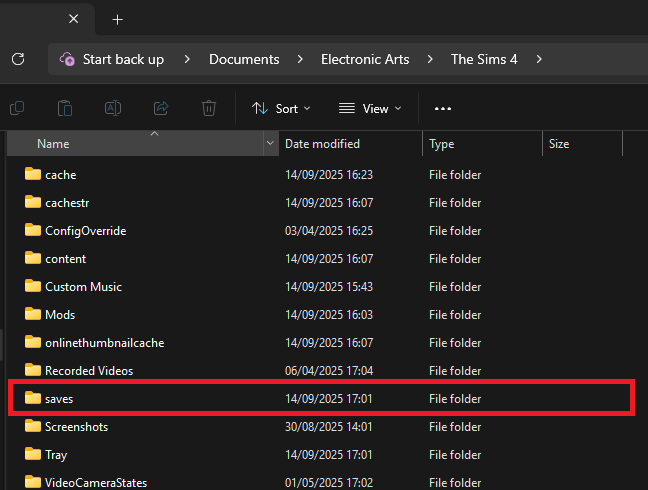
Copy the save files you want to back up. The names of the save files are all numbers, but the most recent ones you’ve created should be the highest number. If you’re worried about not backing up the ones you need, copy all of your saves.
Paste the copied files into a new and secure location, such as an external hard drive or USB stick. It’s also a good idea to name the backup folder to include the date of the backup for easy identification.
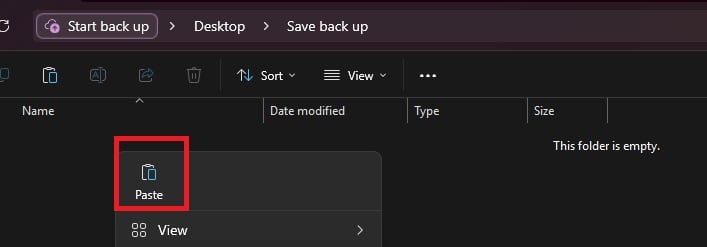
If you need to restore a save, move the copied save files back into the Sims 4 saves folder and replace the existing files.
Checking and Testing Mods
Broken mods are an unfortunate consequence of a big update to any game, but there are things you can do to make it less stressful.
In a folder packed with mods and CC it is sometimes only one or two broken items that are causing problems, and finding it in your files can be a nuisance. Using the 50/50 rule is a good way to set your mods folder up for success and make finding broken content much easier. If you are having game errors and think custom content/mods are to blame, sometimes the only way to find out what’s causing it is by doing a 50/50 manual sort.
Essentially, the 50/50 method involves testing half your mods folder – then half again, and again, and again – until you weed out all the broken content that needs updating. You can also read ThatSimsLady’s explanation of this method here.
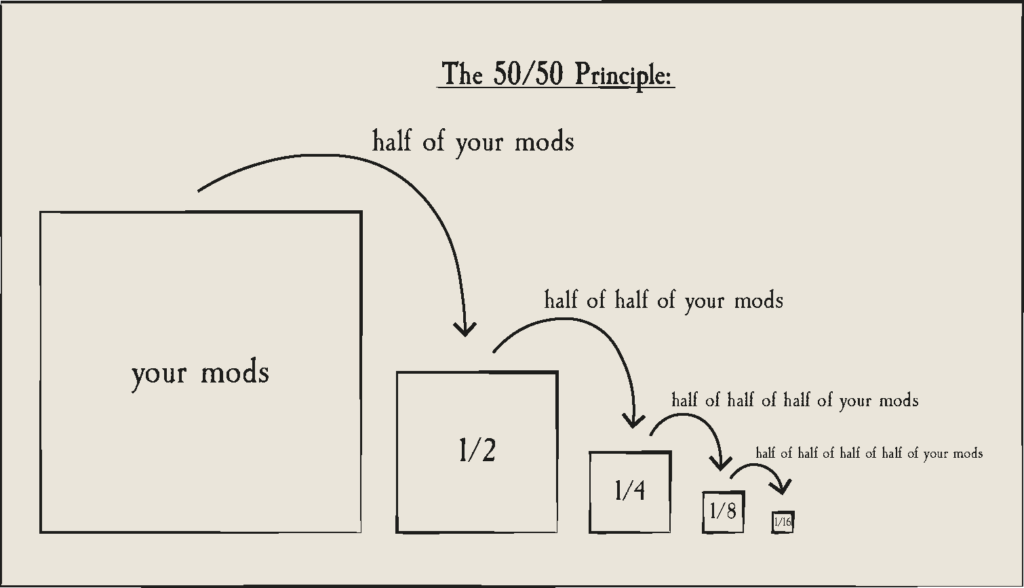 Image Source: Sims After Dark
The best way to do this is to:
Make three new folders outside your mod folder called ‘Tested clear’, ‘Tested broken’ and ‘untested’
Move all your mods to the untested folder
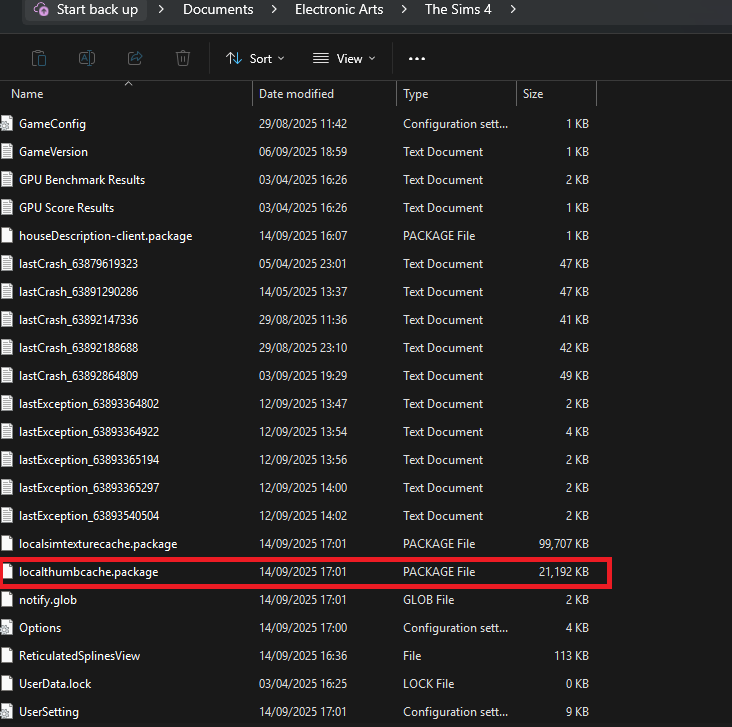
Delete your thumcache file – this is a package file that can be found in your Sims 4 documents folder. You’ll need to do this each time you run a new test for your mods/cc.
Move half of your untested mods back to the mods folder, and open the game. If you use MC Command Centre then this is a good one to test straight away, as it will alert you to any broken content/exceptions. If an error is found, test each new mod/cc you’ve added until you find the broken one, then add it to the ‘tested broken’ folder.
Keep going with this method until you’ve found all the content that needs updating.
You should ideally also test your mods in a new save, and not save your game while you are testing these.
If you are using the 50/50 method to check your mods, make sure that you:
Never separate mod files from the same mod. That might seem obvious, but if you separate mod files and then in testing they show as broken, it’s more than likely going to give you a false positive.
Take note of any mods that rely on each other. If you, for example, use lots of mods that rely on an XML injector, and then separate these from it, this might be the reason they don’t work, rather than a patch update.
Countdown to The Sims 4 Update Release
The upcoming Sims 4 Update is set to release on February 3rd, 2026 across Computer and Console supported platforms. The expected release time for the update is 10AM PT / 7PM CET / 6PM BT. We’ve also made things simpler with an easy countdown below.
Find out when the next Sims 4 Update release is in your area and brace your save files and Mod folders for impact:
Countdown to The Sims 4 Base Game Update
Will you be getting ready for the upcoming Sims 4 Update drop? Let us know in the comments down below and stay tuned on Sims Community for the latest info about the patch drop!