
Hi!
I want to show you how I finally made my CS feel great. In the past, I’ve paid people to optimize my PCs, and while they did a good job, I really wanted to learn how to fix things myself. So here’s exactly how I did it.
My PC Specs
CPU: AMD Ryzen 7 9800X3D (4.7 GHz)
GPU: PNY GeForce RTX 5080 16GB
RAM: Corsair 32GB (4×16GB) DDR5 6000MHz CL30 (Vengeance RGB, AMD EXPO / Intel XMP 3.0)
Step 1: Fresh Windows Install
I did a fresh install of the latest Windows 11.
Step 2: Clean Up Windows (Debloat)
After installing Windows, I used FR33THY’s debloat script.
I followed his guide here:
https://www.youtube.com/watch?v=JJvW9e4X7k0&t=690s
The video is long because he covers NVIDIA, Intel, laptops, etc., but if you’re on NVIDIA like me, the relevant part is only about 7 minutes. He also explains everything the script does.
I highly recommend doing this—it doesn’t break anything in Windows, and you can still use everything you need.
After running the script, I installed CS again.
Step 3: BIOS Settings
In BIOS, I only changed two things:
Enabled EXPO
Enabled C-State Global Control
Step 4: Process Lasso Setup
Next, I installed Process Lasso.
Here’s what I did:
Launch CS2
Open Process Lasso
Go to Active Processes
Right-click on CS2
Go to CPU Affinity → Always → Disable Core 0 and Core 1
Then set CPU Priority → Always → High
After that, I followed this guide to optimize Process Lasso further:
https://www.youtube.com/watch?v=i1eK7xIdXIs
Also, make sure to disable Windows Game Mode, since it can interfere with Process Lasso’s scheduling.
Step 5: NVIDIA Settings
FR33THY’s script includes NVIDIA presets, and they are good.
However, I personally prefer using @fREQUENCYCS’s CS2 NVIDIA profile.
Here’s the link:
https://fpsheaven.com/cs2-nvidia-performance-settings/
What I did:
Open NVIDIA Profile Inspector
Reset all settings to default
Import the FPS Heaven preset
If you have more than one monitor, change Single Display Performance Mode to Multi Display Performance Mode
Step 6: Final Tweaks (Device Manager)
The last thing I did was disable two devices:
High Precision Event Timer (HPET)
Composite Bus Enumerator
You can find them under System Devices in Device Manager.
After disabling those, I restarted my PC.
Final Result
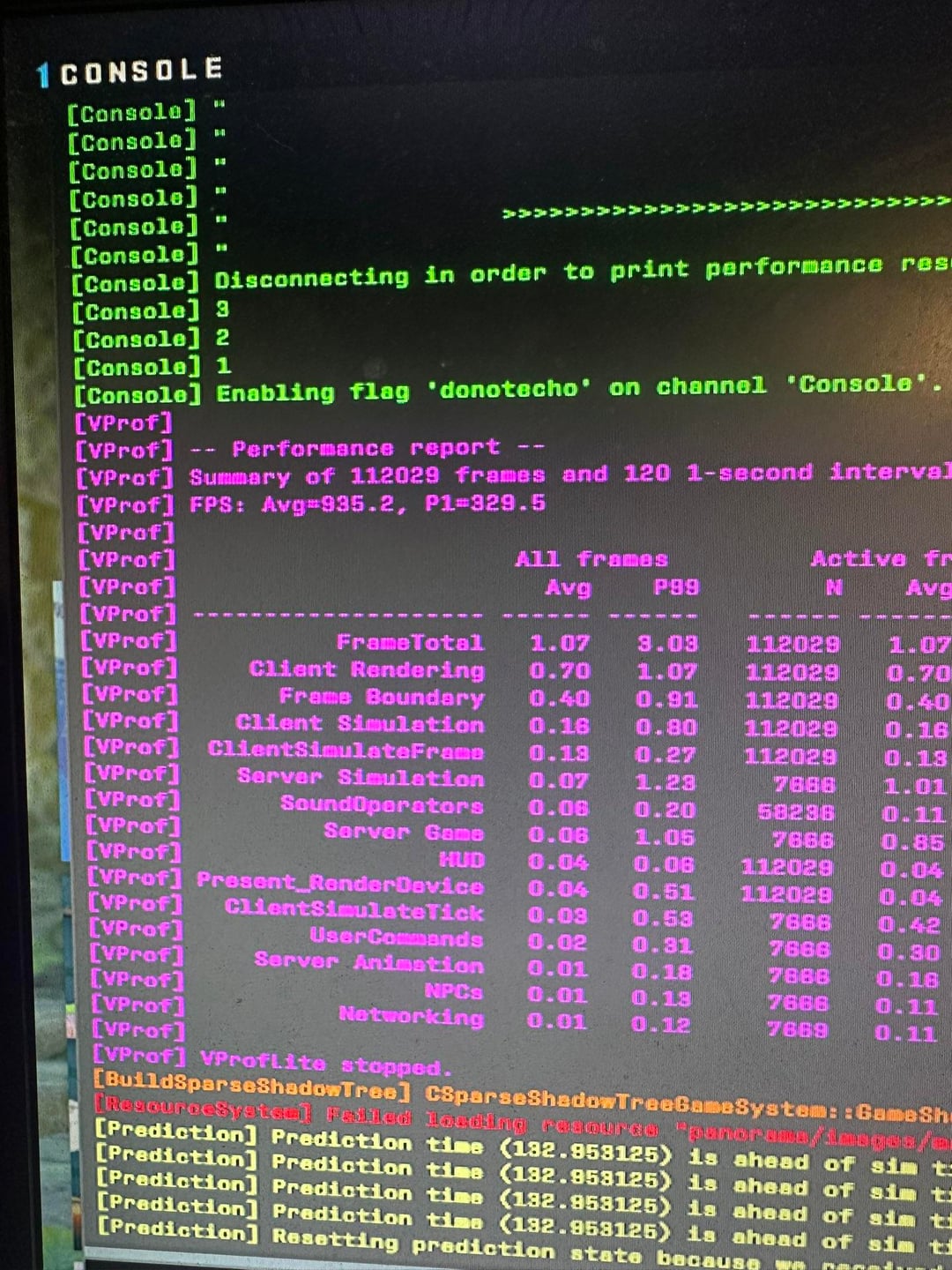
After all of this, my game feels incredibly smooth. My mouse responsiveness is insane, and everything just feels right.
I even tested streaming at 8K bitrate and 120 FPS on Twitch, and I couldn’t even feel a difference while playing. That’s how good it feels.
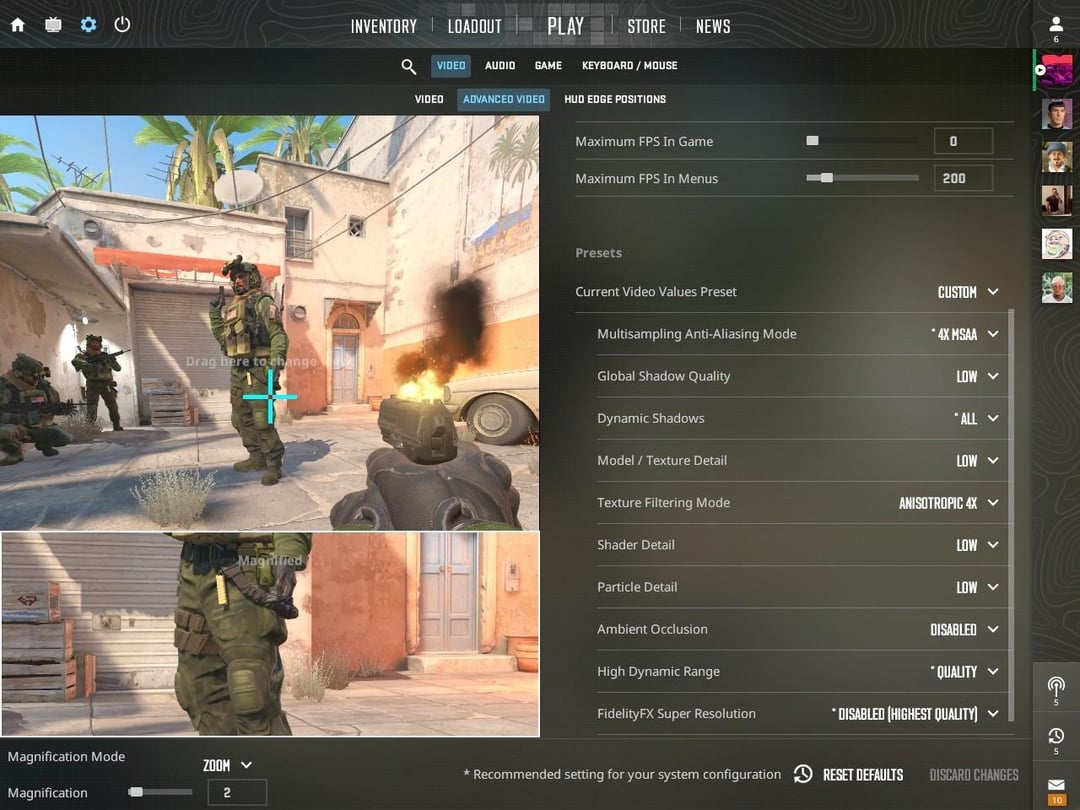
In-Game Video Settings
• Multisampling Anti-Aliasing Mode: 4x MSAA

• Global Shadow Quality: Low

• Dynamic Shadows: All

• Model / Texture Detail: Low

• Texture Filtering Mode: Anisotropic 4x

• Shader Detail: Low

• Particle Detail: Low

• Ambient Occlusion: Disabled

• High Dynamic Range: Quality

• FidelityFX Super Resolution: Disabled (Highest Quality)
I also run:
• V-Sync: Disabled

• G-Sync: Disabled

• NVIDIA Reflex: On